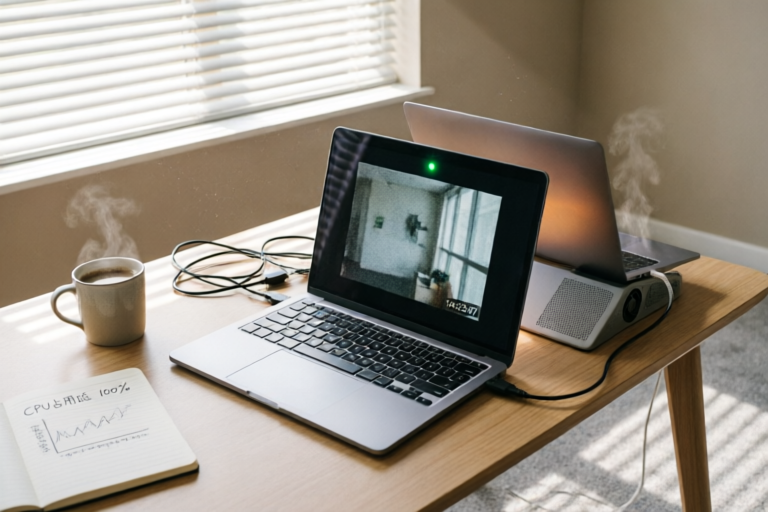
Why Does My Laptop Keep Freezing During Video Calls?
Smooth Video Calls Every Time
Introduction
Video calls have become an integral part of our daily lives, whether for work, education, or socializing. However, many users face a frustrating issue: their laptops freezing during these calls. This can disrupt important meetings,耽误会议和社交活动。本文将探讨导致笔记本电脑在视频通话期间冻结的常见原因,并提供实用的解决方案,以确保您的通话流畅无阻。
Common Causes of Laptop Freezing During Video Calls
Insufficient System Resources (CPU, RAM)
Your laptop may not have enough processing power or memory to handle the demands of a video call, especially if you're running multiple applications simultaneously. This can lead to a noticeable slowdown or even a complete freeze.
Overheating Issues Due to Poor Ventilation or Dust Buildup
When your laptop's cooling system isn't functioning properly, it can cause components to overheat, leading to performance issues. Regularly cleaning your laptop's fans and vents can help prevent overheating.
Outdated or Incompatible Drivers for Video/Audio Hardware
Using outdated or incompatible drivers for your video or audio hardware can cause conflicts that result in freezing during video calls. Ensure your drivers are up-to-date and compatible with your operating system.
Background Applications Consuming Excessive Resources
Running unnecessary background applications can consume valuable system resources, leaving insufficient resources for your video call. It's essential to close any non-essential programs before starting a call.
Diagnosing the Problem
Steps to Identify Which Process is Causing the Slowdown
To diagnose the issue, start by checking which processes are consuming the most CPU and memory during your video call. You can use the Task Manager on Windows or Activity Monitor on macOS to monitor resource usage.
Using Task Manager to Monitor CPU and Memory Usage During Calls
Open Task Manager (Ctrl + Shift + Esc) and switch to the 'Processes' tab. Look for processes that are consuming high CPU or memory usage. You can also use the 'Details' tab to get more information about each process.
Checking System Logs for Error Messages Related to Hardware or Software
If you suspect a hardware or software issue, check your system logs for any error messages. On Windows, you can access the Event Viewer (Windows Key + R, type eventvwr.msc, and press Enter). On macOS, use Console.app to view system logs.
Solutions to Prevent Laptop Freezing During Video Calls
Closing Unnecessary Background Applications Before Calls
Close all non-essential applications before starting a video call. This will free up system resources and ensure smoother performance.
Ensuring Proper Cooling by Cleaning Fans and Vents
Regularly clean your laptop's fans and vents to prevent dust buildup, which can hinder airflow and cause overheating. Consider using compressed air or taking your laptop to a professional for cleaning.
Updating Drivers and Software to the Latest Versions
Ensure that your drivers and software are up-to-date. Manufacturers frequently release updates that improve performance and fix bugs. Check for updates through your operating system's update manager or directly from the manufacturer's website.
Adjusting Video and Audio Settings for Optimal Performance
Lower the resolution or frame rate of your video feed to reduce the load on your system. Additionally, adjust your audio settings to use the built-in microphone and speakers instead of external devices.
Hardware Considerations
Evaluating Whether Your Current Laptop Meets Minimum Requirements for Smooth Video Calling
Check if your laptop meets the minimum system requirements for video calling. Most modern laptops should be able to handle video calls, but older models or those with limited resources may struggle.
Potential Upgrades Such as Additional RAM or SSD for Improved Performance
If your laptop is struggling to handle video calls, consider upgrading its hardware. Adding more RAM or switching to an SSD can significantly improve performance. Consult with a professional to determine the best upgrade options for your specific model.
Considering Alternative Devices if Hardware Limitations Are Significant
If your current laptop consistently freezes during video calls despite efforts to optimize performance, it may be time to consider upgrading to a newer model. A more powerful laptop can provide a smoother experience for video calls and other demanding tasks.
Conclusion
In conclusion, understanding the common causes of laptop freezing during video calls and implementing the recommended solutions can help ensure a smoother and more productive experience. Regular maintenance and upgrades are crucial for maintaining optimal performance. If you continue to experience issues, don't hesitate to seek professional assistance or consider upgrading to a more capable device.
Comments

Checking the system logs was super helpful. Found some errors that were causing the issue. Fixed them and no more freezes!

Does anyone use a different app for calls? I'm on Zoom but maybe there's something better out there.
Should I consider upgrading my RAM or SSD? My laptop is a few years old now.

Closing all non-essential apps really helped. Now my calls are smoother. Thanks for the tips!

Updating my drivers fixed it for me. Wasn't expecting that to make such a big difference!
I think it's my laptop overheating. It gets super hot during calls. Cleaning the vents helped a bit but still freezes sometimes.

Same issue here. It happens mostly when I have multiple tabs open. Any tips on what apps to close before calls?