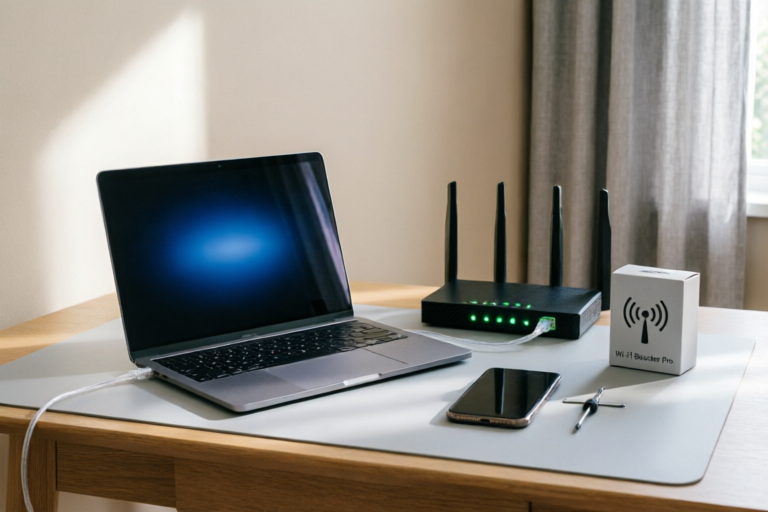
How to Fix Slow Internet Connection at Home Quickly
Seamless Streaming, Seamless Living
Introduction: The Frustration of Slow Internet
In our increasingly connected world, a reliable internet connection is not just a luxury; it is a necessity. Whether you are working remotely, attending virtual classes, or simply enjoying streaming entertainment, nothing is more frustrating than a sluggish connection. Slow internet can lead to dropped calls, endless loading screens, and overall productivity loss. Before you call customer support or pay for expensive upgrades, there are several practical, do-it-yourself steps you can take to identify and resolve the issue.
This comprehensive guide will walk you through a systematic approach to diagnosing and fixing slow internet connections at home. We will cover root cause identification, hardware maintenance, signal optimization, traffic management, and when to consider upgrading your equipment. By following these actionable steps, you can reclaim your bandwidth and enjoy a smoother online experience.
1. Identify the Root Cause of Slow Connectivity
The first rule of troubleshooting any technical issue is understanding where the problem originates. Is the bottleneck occurring between your device and your router, or is the issue coming from your Internet Service Provider (ISP)? Determining the source is crucial before wasting time on ineffective fixes.
Running Diagnostic Speed Tests
Utilizing third-party speed testing tools is the most objective way to gauge your internet performance. Websites like Speedtest.net, Ookla, or Google’s Google Fiber Speed Test provide accurate metrics on download speed, upload speed, and latency (ping).
- Test Multiple Devices: Do not rely on a single computer. Run tests on your phone, laptop, and tablet. If all devices show slow speeds, the issue likely lies with the ISP or the main connection point. If only one device is slow, the issue may be specific to that device’s hardware or software.
- Cable Connections: Whenever possible, connect your computer directly to the modem using an Ethernet cable. Wi-Fi introduces variables such as signal interference and distance. A wired connection provides a baseline for your maximum potential speed.
- Compare Results to Plan: Log in to your ISP account to check what speed tier you are paying for. If your speed test results are significantly lower (e.g., below 80% of your promised speed), the ISP is underdelivering. However, if wired speeds are fast but Wi-Fi speeds are slow, the issue is definitely within your home network.
Analyzing Network Saturation
Sometimes, the connection isn’t broken; it is just busy. Modern homes have dozens of connected devices simultaneously. Identifying peak usage times can help you understand if the slowness is due to congestion on your street (common during evenings) or saturation within your own household.
2. Perform Essential Hardware Resets
One of the simplest yet most effective solutions to connectivity issues is the classic “turn it off and on again.” While it sounds cliché, restarting your networking equipment clears temporary errors, releases IP address conflicts, and allows routers to refresh their connection to the ISP’s tower.
Step-by-Step Power Cycling Guide
To perform a hard reset correctly, follow this precise sequence to ensure all components communicate effectively:
- Unplug Everything: Disconnect the power cords from both your modem and your router. If you have a separate fiber optic ONT or voice gateway, unplug those as well.
- Wait: You must wait at least 30 seconds. This pause ensures that any residual electricity dissipates and the capacitors fully discharge, wiping the device’s temporary memory (RAM) clean.
- Power the Modem First: Plug the modem back into the wall outlet first. Wait for the indicator lights to stabilize (usually showing a solid broadband light, not blinking rapidly). This indicates a successful handshake with the ISP.
- Power the Router Second: Once the modem is fully online, plug the router back in. Wait for it to boot up completely. This may take a few minutes.
Checking Physical Cables
During your reboot process, inspect the coaxial cables or Ethernet lines connecting your equipment. Look for signs of wear, fraying, or loose fittings. Tighten any loose screws on the coaxial connections (F-connectors) as vibrations can loosen them over time, leading to signal degradation.
3. Optimize Router Placement and Signal
Your router is the hub of your digital life, but its effectiveness is heavily dependent on its physical placement. Many people keep their routers tucked away in corners, inside cabinets, or on the floor, which drastically reduces Wi-Fi coverage.
Centralized Positioning
Wi-Fi signals radiate outward in all directions (like a sphere). Placing the router in the center of your home maximizes coverage to the furthest rooms. Elevate the device as well. Signals travel better above waist height rather than being blocked by furniture, carpets, or appliances sitting on the floor.
Minimizing Physical Obstructions
Physical barriers are the enemies of Wi-Fi signals. Materials like brick, concrete, steel, and water absorb or reflect radio waves. Keep your router away from:
- Large Metal Objects: Filing cabinets, refrigerators, or microwaves can shield the signal.
- Water Sources: Aquariums are notorious for disrupting signals because water attenuates radio waves.
- Building Structures: Avoid placing the router behind thick load-bearing walls.
Understanding Frequency Bands
Most modern routers are dual-band, offering 2.4GHz and 5GHz networks. The 2.4GHz band travels further and penetrates obstacles better but is slower and prone to interference from neighbors’ Wi-Fi and Bluetooth devices. The 5GHz band is faster and less crowded but has shorter range. For proximity activities (streaming HD video), connect to 5GHz. For distant rooms, stick to 2.4GHz, or utilize a Mesh system to bridge the gap.
4. Manage Bandwidth-Heavy Applications
Even with perfect hardware and placement, slow internet can occur due to inefficient data management within your network. If multiple devices are consuming large amounts of data simultaneously, available bandwidth drops for everyone else.
Prioritizing Tasks
Identify which applications consume the most data. Video conferencing (Zoom, Teams), cloud backups (Google Drive, iCloud), gaming downloads, and 4K streaming are heavy consumers. During work hours or study times, schedule non-critical tasks for later.
- Stop Unnecessary Downloads: Pause large file downloads until off-peak hours.
- Manage Updates: Configure consoles and smart TVs to update software only when the house is empty.
- Kill Background Processes: On computers, check Task Manager or Activity Monitor to see if programs are uploading or downloading data in the background.
Quality of Service (QoS)
Log into your router’s admin panel (often accessed via a browser URL like 192.168.1.1) to access Quality of Service settings. QoS allows you to prioritize traffic. For example, you can tell your router that VoIP calls or Zoom meetings should get higher priority than YouTube streaming or general web browsing. This ensures that critical business tasks remain smooth even if someone else is gaming nearby.
5. Evaluate Equipment and Service Plans
If you have exhausted the basic troubleshooting steps and your internet remains sluggish, it may be time to invest in better infrastructure or review your service contract. Technology evolves rapidly, and older gear often cannot handle modern high-speed demands.
Upgrading Older Hardware
Check the age of your router and modem. Devices older than three to five years may use outdated standards (such as Wi-Fi 4/N or DOCSIS 3.0). Upgrading to a Wi-Fi 6 (802.11ax) router can significantly reduce latency and handle more simultaneous connections. Similarly, if your modem is old, it might not support the high-tier speeds you are paying for. Many ISPs now rent out newer mesh systems which allow for whole-home coverage.
Contacting the Service Provider
If hardware resets and placement changes yield no improvement, your ISP might be experiencing regional outages or throttling. Contact their support team and ask specifically about:
- Line Noise: Ask them to check the signal-to-noise ratio on your line.
- Data Caps: Check if you have exceeded your monthly data allowance, which can trigger speed reductions.
- Plan Tier Upgrade: Consider upgrading to a higher tier if your current speed cap is insufficient for your household’s needs.
Conclusion: Restoring Your Digital Efficiency
A slow internet connection does not have to be the norm. By systematically identifying the root cause, refreshing your hardware, optimizing physical placement, managing application traffic, and evaluating your equipment, you can achieve significant improvements in network performance. Start with the free, easy fixes like power cycling and positioning. If the problem persists, invest in targeted upgrades. With a stable and fast connection, you ensure that your home remains a hub for productivity and enjoyment, free from the frustration of digital downtime. Take control of your network today and experience the difference seamless connectivity makes.
Comments

Which speed test site is most accurate? Mine keeps giving weird numbers.

Same problem here! Three kids streaming at once kills everything.

Paused a windows update and browsing was fast again. Guess I wasn't paying attention.

Does this work for fiber or just cable? Mine is still jittery even after reset.

Moved router out of the closet and up stairs. Huge difference finally.

Think my neighbor is stealing wifi lol. Any way to lock it down more securely?

Tried step 2 immediately and ping dropped. Forgot to unplug the modem before lol.