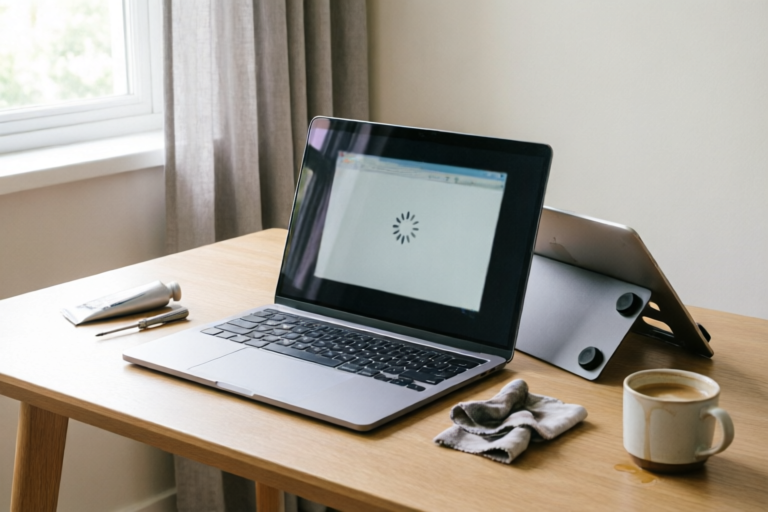
How to Fix Slow Computer Performance at Home
Boost Your Computer's Speed with These Simple Fixes
Introduction to Common Causes of Slow Computer Performance
Are you frustrated by your computer’s sluggish performance? Whether it’s taking forever to boot up or running slow during everyday tasks, there are several common causes behind these issues. In this article, we’ll explore the factors that can slow down your computer and why maintaining optimal performance is crucial for both productivity and enjoyment.
Overview of Factors That Can Slow Down a Computer
There are many reasons why your computer might be running slowly. Some of the most frequent culprits include:
- Cluttered Storage: Accumulated files, large downloads, and unused programs can clog your hard drive and reduce overall system speed.
- Outdated Drivers: Outdated device drivers can cause compatibility issues and slow down hardware components.
- Too Many Startup Programs: Having too many programs set to launch automatically can significantly delay boot times.
- Insufficient RAM: Low amounts of Random Access Memory (RAM) can lead to slow multitasking and frequent system crashes.
The importance of maintaining optimal performance cannot be overstated. A faster computer not only improves your daily productivity but also enhances your overall user experience. By addressing these common issues, you can enjoy smoother operation and more enjoyable computing.
Cleaning Up Unnecessary Files and Programs
One of the easiest ways to improve your computer's speed is by decluttering your storage space. Over time, your computer accumulates various types of files that take up valuable disk space and contribute to slower performance.
Explanation of How Cluttered Storage Affects Speed
When your hard drive becomes full, the computer has less room to store essential temporary files, which can slow down operations. Additionally, large files and unused programs consume resources that could otherwise be used for more important tasks.
Step-by-Step Guide on Deleting Temporary Files, Unused Programs, and Large Downloads
To free up space and improve performance, follow these steps:
- Delete Temporary Files: Go to
Control Panel > System and Security > System > Advanced system settings > Settings under Performance > Disk Cleanup. Select all file types and click OK. - Uninstall Unused Programs: Use the
Programs and Featuressection in Control Panel to remove any applications you no longer need. - Remove Large Downloads: Check your download folder for any large files that are no longer necessary and delete them.
Tips for Using Disk Cleanup Tools Effectively
In addition to the built-in Disk Cleanup tool, consider using third-party utilities like CCleaner or Glary Utilities for more thorough cleaning. These tools offer advanced features such as registry cleaning, browser cache clearing, and more.
Optimizing Startup Processes
Another major factor contributing to slow computer performance is the number of programs set to launch automatically at startup. While some startup programs are necessary, having too many can significantly delay your boot time.
Understanding the Impact of Startup Programs on Boot Time
Each program that launches during startup consumes system resources, including CPU and memory. This can result in longer boot times and reduced performance once the computer is fully loaded.
Instructions for Disabling Unnecessary Startup Applications
To disable unnecessary startup programs, follow these steps:
- Open Task Manager: Press
Ctrl + Shift + Escto open Task Manager. - Go to the Startup Tab: Click on the
Startuptab. - Disable Unnecessary Programs: Right-click on each program and select
Disable.
Recommendations for Managing Startup Items Efficiently
Be cautious when disabling startup programs, especially those related to security or system functions. It’s recommended to leave critical applications like antivirus software enabled. You can always re-enable programs if needed.
Updating Drivers and Software
Outdated drivers and software can cause compatibility issues and slow down your computer. Ensuring that your system is up-to-date is one of the best ways to maintain optimal performance.
The Role of Outdated Drivers in Slowing Down Computers
Drivers are small software programs that allow your operating system to communicate with hardware components. When drivers become outdated, they may cause conflicts or inefficiencies, leading to slower performance.
Guidance on Checking and Updating Drivers Through Device Manager or Manufacturer Websites
To check and update drivers:
- Open Device Manager: Press
Win + Xand selectDevice Manager. - Expand Categories: Click on each category to expand it.
- Check Driver Versions: Right-click on each device and select
Properties. Under theDrivertab, you can see the driver version and manufacturer. - Update Drivers: If an updated driver is available, right-click on the device and select
Update driver. Alternatively, visit the manufacturer’s website for the latest drivers.
Emphasis on Keeping Operating Systems and Antivirus Software Up-to-Date
Regular updates for your operating system and antivirus software are crucial for maintaining security and performance. Enable automatic updates to ensure you’re always running the latest versions.
Increasing RAM and Upgrading Hardware (Optional)
If your computer still runs slow after following the previous steps, you may want to consider upgrading your hardware. Additional memory and faster components can provide a significant boost in performance.
Discussion About How Additional Memory Can Enhance Performance
RAM plays a vital role in multitasking and running multiple applications simultaneously. Adding more RAM can improve performance, especially if your current amount is insufficient for your needs.
Considerations When Deciding Whether Hardware Upgrades Are Necessary
Before investing in hardware upgrades, assess your current system and usage patterns. If your computer is more than five years old or frequently crashes, upgrading may be worthwhile. However, if your system is relatively new and you don’t use resource-intensive applications, software optimization might suffice.
Brief Overview of Potential Cost vs. Benefit Analysis
Upgrading hardware can be expensive, so it’s important to weigh the costs against the benefits. Consider the following:
- Cost of Components: Research the price of RAM, SSDs, and other hardware upgrades.
- Installation Complexity: Some upgrades require technical expertise or professional assistance.
- Performance Gains: Evaluate whether the expected performance improvements justify the investment.
Conclusion: Regular Maintenance Practices for Long-Term Speed Improvement
In conclusion, fixing slow computer performance requires a combination of regular maintenance practices and occasional hardware upgrades. By cleaning up unnecessary files, optimizing startup processes, updating drivers, and possibly increasing RAM, you can significantly improve your computer’s speed and efficiency.
Summary of Key Points Discussed Throughout the Article
We’ve covered several methods to address slow computer performance, including:
- Cleaning up unnecessary files and programs
- Optimizing startup processes
- Updating drivers and software
- Potential hardware upgrades
Encouragement for Readers to Establish a Routine for Regular Maintenance Checks
Establishing a routine for regular maintenance checks is essential for long-term speed improvement. Schedule periodic cleanups, driver updates, and hardware assessments to keep your computer running smoothly.
Final Thoughts on Balancing Immediate Fixes with Long-Term Strategies
While immediate fixes can provide quick relief, long-term strategies are necessary to maintain optimal performance over time. By combining both approaches, you can enjoy a faster, more reliable computer for years to come.
Comments

My old laptop is finally running smoothly after following these steps. Thanks!

This worked for me! I now have more time to focus on work instead of waiting for my PC.

I never thought about checking my drivers. Will try this tonight!

Don't forget to update your antivirus too! Sometimes malware can slow things down.

Adding more RAM was a game-changer for me. Before, even basic tasks were lagging.

I cleaned up my temp files and unused programs, but my computer is still slow. Any more tips?
Same issue here. My PC was taking forever to start. Disabling some startup apps really helped!