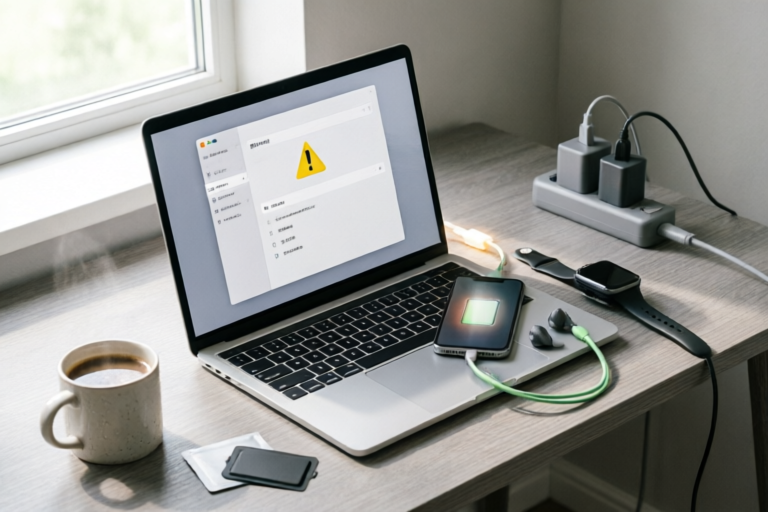
Why Does My Laptop Battery Drain So Quickly?
Extend Your Laptop Battery Life with These Simple Solutions
Introduction to Laptop Battery Life Issues
Are you constantly frustrated by your laptop's battery draining too quickly? You're not alone. Many users experience this issue, and it can be quite inconvenient, especially when you're away from a power outlet. Understanding the common causes of rapid battery drain is the first step towards finding a solution. In this article, we'll explore various factors that contribute to your laptop's battery life decreasing faster than expected.
Common Causes of Rapid Battery Drain
To understand why your laptop battery drains so quickly, it's essential to know how lithium-ion batteries work. Lithium-ion batteries are the most commonly used type in laptops due to their high energy density and relatively long cycle life. However, several factors can accelerate their degradation:
- Aging: Like all batteries, lithium-ion batteries degrade over time. The number of charge cycles decreases as the battery ages, leading to reduced capacity.
- Usage Patterns: Frequent full discharges and recharges can shorten the overall lifespan of your battery. It's recommended to keep your battery between 20% and 80% for optimal longevity.
- High Temperatures: Exposing your laptop to extreme temperatures, either hot or cold, can damage the battery cells and reduce their efficiency.
Software-Related Issues
Operating Systems and Apps
Your operating system and installed applications play a significant role in how quickly your battery drains. Here’s how:
- Background Processes: Many applications continue running in the background even when they aren't actively being used. These background processes consume power, which can significantly reduce your battery life.
- Unnecessary Services: Some operating systems have default services that run continuously, consuming battery power. Disabling these services can help conserve battery life.
- Updates and Downloads: Automatic updates and downloads can run in the background, consuming both data and battery power. Make sure to disable or schedule these tasks during times when your laptop is plugged in.
Hardware and Environmental Factors
External Factors
External environmental conditions and hardware components also impact your laptop's battery life:
- Screen Brightness: One of the biggest culprits for rapid battery drain is keeping your screen brightness at maximum. Reducing the brightness can extend your battery life considerably.
- Power Settings: Modern laptops come with various power-saving modes. Enabling these modes can help optimize your battery usage. For example, switching to 'Battery Saver' mode can reduce processor speed and dim the display, conserving power.
- CPU and GPU Usage: Intensive tasks such as gaming, video editing, or running multiple resource-heavy applications can put a strain on your CPU and GPU, causing your battery to drain faster.
Battery Health and Maintenance Tips
Strategies for Extending Laptop Battery Life
Proper care and maintenance can significantly extend your laptop's battery life:
- Regular Calibration: Occasionally, calibrating your battery can help ensure accurate readings. This involves fully charging the battery, letting it discharge completely, and then recharging it again.
- Avoid Extreme Temperatures: Keep your laptop in moderate temperatures to prevent overheating or freezing, which can damage the battery cells.
- Use Power Adapters Sparingly: Over-relying on power adapters can lead to battery degradation. Whenever possible, use your laptop on battery power to maintain its health.
Best Practices for Charging and Discharging Batteries
Here are some best practices to follow when charging and discharging your laptop's battery:
- Partial Charges: Instead of always charging your battery to 100%, try to keep it between 20% and 80%. This helps prevent stress on the battery cells.
- Discharge Cycles: Limit the number of full discharge cycles per month. A few deep discharges per month are sufficient to maintain battery health.
- Use Quality Chargers: Always use the original charger provided with your laptop or a reputable third-party charger. Poor quality chargers can cause irregular charging and harm the battery.
Conclusion and Final Recommendations
In conclusion, understanding the factors that contribute to your laptop's rapid battery drain is crucial for maintaining its performance and longevity. By addressing software-related issues, optimizing hardware settings, and following proper battery maintenance practices, you can significantly extend your laptop's battery life. Remember, small changes in your daily habits can make a big difference in how long your laptop stays charged.
Practical Steps to Improve Battery Performance
- Disable unnecessary background processes and services.
- Adjust screen brightness and power settings for optimal battery savings.
- Keep your laptop in a cool environment and avoid extreme temperatures.
- Calibrate your battery regularly and limit full discharge cycles.
- Use power adapters sparingly and only when necessary.
Comments

My laptop is a few years old. Could it just be time for a new battery?

Reduced the screen brightness and turned off Bluetooth when not in use. Made a huge difference!

I use a third-party charger. Could that be affecting my battery life?

Is it normal for the battery to drain faster when I'm gaming or watching videos?
I think my laptop gets too hot under the desk. Moved it to a flat surface and the battery life improved.

This worked for me - I updated my OS and disabled some startup programs. Also, I noticed that keeping the lid open when charging helps.
Same issue here. My battery barely lasts through my morning meetings. Tried everything from dimming the screen to closing background apps, no luck.