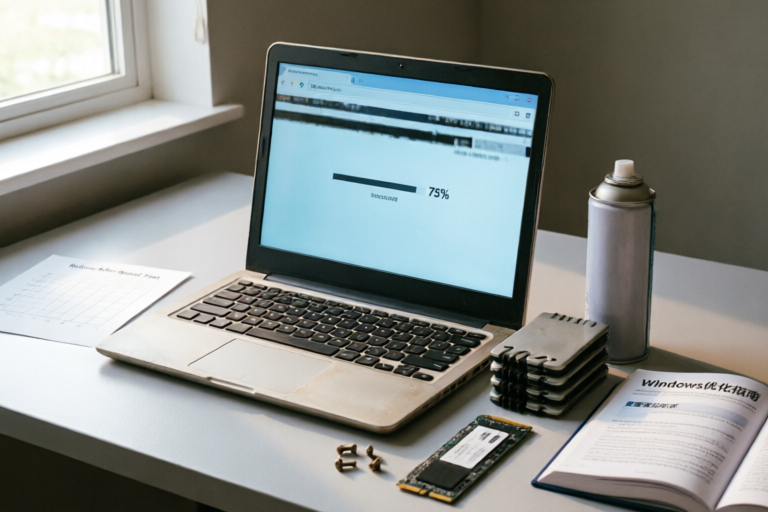
# How Can I Fix Slow Performance on My Old Laptop?
## Introduction: Diagnosing Laptop Sluggishness
If you have ever sat down to work only to stare blankly at a spinning cursor, your old laptop may be signaling that it has reached its limit. It is a frustrating experience shared by millions of users worldwide. Over time, laptops inevitably lose their initial speed. While newer computers boast blazing-fast processors and lightning-quick solid-state drives, older models often struggle to keep up with modern software demands. Understanding why this happens is the first step toward revitalizing your device.
### The Lifecycle of Hardware Degradation
Laptops are essentially portable computers packed tightly together. Over years of usage, several factors contribute to sluggishness. First, there is physical wear and tear. Fans accumulate dust, leading to thermal throttling where the processor slows down intentionally to prevent overheating. Second, and perhaps more significantly, is software bloat. Modern operating systems and applications require more resources than they did five years ago. An application designed to run smoothly on Windows 7 might choke on Windows 10 or 11 due to increased security protocols and background indexing services.
Third, storage fragmentation plays a major role. Traditional Hard Disk Drives (HDDs) store data in sectors. As files are created and deleted over time, these fragments scatter across the disk, forcing the read/write head to hop around to access a single file, drastically reducing speed. Finally, memory leaks in poorly coded applications can cause Random Access Memory (RAM) usage to spike, leaving little room for actual tasks.
### Setting Realistic Expectations
Before diving into fixes, it is crucial to manage expectations. You cannot turn a low-end laptop from 2012 into a high-performance workstation capable of video rendering or gaming. However, the goal is not necessarily to make it fly like a Ferrari; rather, it is to make it drive comfortably again. With the right combination of software hygiene and selective hardware upgrades, you can extend the useful life of your machine by several years, saving you hundreds of dollars on a brand-new purchase. This guide will walk you through every layer of optimization, from deleting junk files to replacing internal components.
## Clean Up Digital Clutter
One of the most accessible ways to improve performance is simply cleaning house. Just as a messy physical desk hinders your ability to find documents quickly, digital clutter consumes vital system resources and fills up storage space, leaving little room for the Operating System to create swap files necessary for smooth operation.
### Removing Temporary Files and Junk Data
Temporary files are often left behind by installers, update processes, or crashed programs. They serve no purpose after a session ends and can occupy gigabytes of space. In Windows, you can utilize the built-in tool known as Disk Cleanup or, in newer versions, Storage Sense.
To manually address this, press `Windows + R`, type `%temp%`, and hit Enter. This opens the folder containing temporary files. Select all files (Ctrl + A) and delete them. Do not worry if some files refuse to delete; they are currently in use by other processes and can be skipped.
Additionally, clearing the browser cache is essential. Browsers like Chrome, Edge, and Firefox store vast amounts of cached images and scripts to speed up page loads. Over months, this can become bloated. Go to your browser settings, navigate to Privacy and Security, and select Clear Browsing Data. Choose Cached Images and Files, and potentially Cookies depending on your privacy preference.
### Uninstalling Unused Software
Unused software is silent resource hog. Even if you do not open an application, it might install background drivers or services that activate automatically. Take stock of what is installed on your machine. Navigate to Settings > Apps > Installed Apps (in Windows) or Applications folder (on macOS).
Be ruthless. If you haven't opened a program in six months, uninstall it. Be particularly vigilant about pre-installed bloatware, which are trial versions of software pushed by manufacturers. These often run continuously in the background. If a program is a driver you recognize (like a graphics card utility), leave it. If it is a game you never play, remove it.
### Running Comprehensive Antivirus Scans
Malware is a notorious cause of slow performance. Some malicious scripts, even harmless adware, run hidden processes that consume CPU cycles and network bandwidth. Most modern laptops come with built-in protection. On Windows, Windows Defender is sufficient for most users. However, for an old laptop that might be vulnerable, a second opinion scanner is wise.
Download a reputable on-demand scanner such as Malwarebytes Free. Run a full system scan. Unlike real-time protectors, these tools focus solely on finding existing threats. Remove any detected items. Note that running multiple antivirus programs simultaneously can conflict and slow the system down further. Once the scan is complete and threats removed, consider disabling the paid version of third-party antivirus if you prefer to rely on the native Defender to save resources.
## Optimize Software and Startup Processes
Once the physical space is cleared, the next battle is managing how software interacts with your system resources. The difference between a fast laptop and a slow one often lies in what happens before you even log in and how many tabs you have open.
### Managing Startup Programs
A significant delay occurs during boot-up. Many applications configure themselves to launch automatically when Windows starts. This ensures convenience but severely impacts boot time and initial responsiveness. To fix this:
1. Press `Ctrl + Shift + Esc` to open Task Manager.
2. Click on the Startup tab.
3. Review the list of enabled applications.
4. Look for items with a Low impact but enable status. Examples often include Spotify, Skype, Steam, or Printer utilities.
5. Right-click and select Disable.
Do not disable audio drivers or touchpad services. Focus on user-facing applications that do not need to be running immediately upon login. After disabling unnecessary items, restart your laptop to see the improved boot times.
### Disabling Background Applications and Services
Even after logging in, background processes can throttle performance. Open the Task Manager again and click on the Processes tab. Sort by CPU or Memory usage to identify heavy hitters. If you see a process eating up 50% of your CPU that isn't your main active window, investigate it.
You can also adjust power settings. By default, laptops are set to \"Balanced\" mode to preserve battery life. Switching to \"High Performance\" prevents the processor from downclocking during tasks, making the machine feel snappier. Note that this will drain your battery faster if you are unplugged. Access this via Control Panel > Power Options.
Furthermore, visual effects can be optimized. Windows includes animations for windows opening and minimizing. On older hardware, these take processing power to render. Search for \'Adjust appearance and performance of Windows\' in the Start menu, select \'Adjust for best performance,\' and uncheck unnecessary effects to prioritize speed over aesthetics.
### Browser Extension Overload
Modern web browsing is demanding. Each extension acts like a mini-program running in the background. If you have fifteen extensions installed, ten of those might be active every time you load a new tab. Go to your browser's extension management page. Remove any you do not actively need daily. Consolidate functionality: if you have separate ad blockers and download managers, look for all-in-one solutions.
Another tip is to reduce the number of tabs. Every tab reserves RAM. Using bookmark folders instead allows you to unload tabs when not needed, freeing up memory for heavier applications.
## Upgrade Hardware Components
Sometimes, software tweaks yield diminishing returns. When the fundamental components of the computer are outdated, the only way to truly unlock performance is physical hardware changes. This is the area where an old laptop can receive its biggest boost, often doubling or tripling its capability.
### Replacing HDD with an SSD
This is the single most impactful upgrade you can perform. Traditional Hard Disk Drives (HDDs) use spinning magnetic platters. They are reliable for bulk storage but notoriously slow at reading random small files. Solid State Drives (SSDs) use flash memory with no moving parts. They offer nearly instant data access speeds.
Switching from an HDD to an SSD transforms the user experience. Boot times drop from minutes to seconds. Opening large programs like Photoshop or Excel happens almost instantly. The process involves cloning your current drive or performing a fresh installation of the Operating System onto the new SSD. You will need a USB adapter to connect the SSD externally for cloning if you choose that route. Ensure you purchase an SSD compatible with your laptop's interface, either SATA III or M.2 NVMe, depending on the available slot in your chassis.
### Adding More RAM
Random Access Memory is the workspace of your CPU. When your RAM fills up, the system uses the hard drive as temporary memory, which is called virtual memory or a pagefile. Since hard drives are slower than RAM, the system lags.
For modern usage, 4GB is considered insufficient, and 8GB is the bare minimum. If your laptop supports expansion, upgrading to 16GB can make multitasking effortless. Before purchasing, check your laptop model specifications online to determine the maximum supported RAM and the type (DDR3, DDR4, etc.). If you have two slots and one is occupied, you might need to replace both sticks to achieve symmetry and stability. Installing RAM is generally straightforward: turn off the laptop, pop open the service panel, and plug the module in until it clicks. However, verify warranty implications before opening the casing.
### Cooling System Maintenance
Overheating causes performance drops. When a CPU reaches a critical temperature, it throttles its clock speed to cool down. Old laptops suffer from dried thermal paste and clogged fans. Dust accumulation acts as an insulator, trapping heat inside the chassis.
You can maintain the cooling system by using compressed air to blow out vents. Be careful not to spin the fans too hard with the air canister as this can generate electricity back into the motherboard. For a deeper clean, disassemble the laptop to clean the fan blades and heatsink. Furthermore, apply new thermal paste between the CPU and the heatsink. High-quality thermal paste conducts heat away from the processor much better than the factory-applied substance, which may have degraded over the years. This simple maintenance can lower temperatures by 5 to 10 degrees Celsius, preventing throttling during intense tasks.
## Conclusion and Final Recommendations
Bringing an old laptop back to life requires a systematic approach. It begins with diagnosing the bottlenecks through digital decluttering and optimizing software behavior. Simple actions like cleaning temp files, disabling startup programs, and updating drivers can yield immediate, albeit modest, improvements. These steps are free and should always be the first line of defense.
However, for substantial gains, hardware upgrades are often necessary. Replacing an old mechanical hard drive with a Solid State Drive (SSD) is universally recommended as it addresses the most significant performance gap. Coupled with an increase in RAM capacity, your old machine can handle modern web browsing, document editing, and media streaming with ease. Regular maintenance, including dust cleaning and thermal paste application, ensures these improvements last longer.
### When to Replace Your Laptop
While optimization is powerful, there comes a point where the cost of repairs outweighs the benefit. Consider replacing your laptop entirely if:
1. **Incompatibility:** The motherboard does not support modern SSDs or enough RAM.
2. **Physical Damage:** Cracked screen, broken keyboard, or water damage exists that is prohibitively expensive to fix.
3. **Battery Life:** The battery is swollen or holds less than 30% charge and cannot be replaced cheaply.
4. **Processing Power:** Even with all upgrades, the CPU cannot decode modern video codecs required for basic streaming (like HEVC/VP9) or fails to run the latest Windows updates securely.
If your budget allows, investing in a mid-range refurbished business laptop often provides better reliability and longevity than trying to salvage a consumer-grade machine past its prime.
### Final Troubleshooting Checklist
To summarize, follow this sequence:
- [ ] Perform a backup of all important data.
- [ ] Scan for viruses and malware.
- [ ] Uninstall unused software and clear temporary files.
- [ ] Disable unnecessary startup programs.
- [ ] Update all drivers and the Operating System.
- [ ] Upgrade to an SSD if using an HDD.
- [ ] Increase RAM if below 8GB.
- [ ] Clean internal dust and check thermal paste.
By following these guidelines, you can breathe new life into your technology. Whether you keep your trusty old companion for another year or three, or decide it is time to move on, these steps ensure you made the most of your investment before letting go.
### Frequently Asked Questions (FAQ)
**Q: Will resetting my laptop speed it up?**
A: Yes, a factory reset wipes out accumulated software errors and bloat. It effectively gives you a new installation environment. However, remember to back up your data first.
**Q: Is installing a Linux distribution a good idea for old hardware?**
A: Absolutely. Distributions like Linux Mint or Ubuntu can be lighter on resources than Windows. If Windows runs slowly, a lightweight Linux OS can make an old netbook usable for web tasks.
**Q: How often should I clean my laptop physically?**
A: Ideally once a year, especially if you live in a dusty environment or frequently use your laptop on carpets.
**Q: Does defragmenting an SSD hurt it?**
A: Yes. Do not defragment SSDs. SSDs do not benefit from defragmentation and it reduces their lifespan. Defragging is only recommended for traditional HDDs.
With patience and these practical tips, your old laptop does not have to be obsolete. It is a testament to engineering and design that modern devices can serve us well beyond their release date, proving that with care, our tools can continue to empower our productivity for years to come.