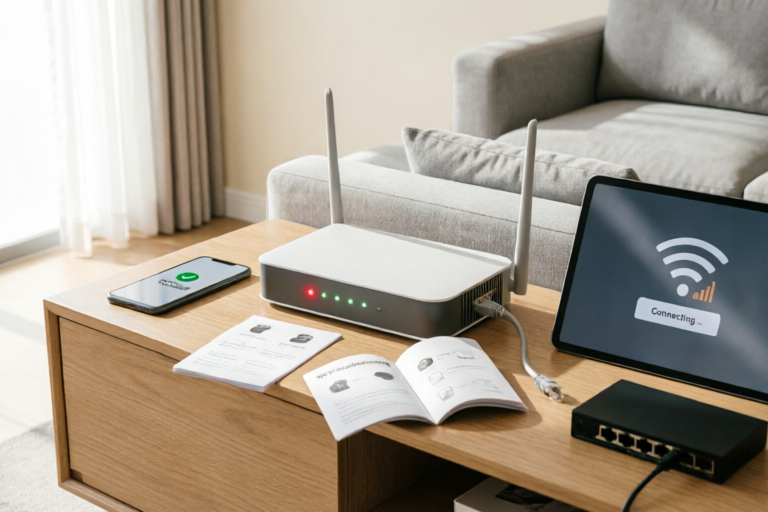
How to Fix Common Home Wi-Fi Connection Issues
Stable Internet, Happy Home
Introduction to Wi-Fi Connection Problems
Wi-Fi has become an essential part of modern life, connecting our homes, offices, and public spaces. However, many home users frequently face various Wi-Fi connection issues that can disrupt their daily activities. These issues can range from slow speeds and dropped connections to difficulty in connecting to the network altogether. A stable internet connection is crucial for activities such as streaming, gaming, and working from home. In this article, we will explore common Wi-Fi connection problems and provide practical solutions to help you maintain a reliable home Wi-Fi network.
Troubleshooting Basic Wi-Fi Connectivity Issues
Restarting Your Router and Modem
One of the simplest and most effective ways to resolve Wi-Fi connectivity issues is to restart your router and modem. Over time, routers can accumulate temporary glitches that can be resolved by simply restarting them. Unplug both your router and modem, wait for about 30 seconds, and then plug them back in. This process refreshes the system and often restores normal functionality.
Checking Cables and Power Connections
Ensure all cables are securely connected and properly plugged in. Loose or damaged cables can cause intermittent connectivity issues. Check the power supply to your router and modem to ensure they are receiving adequate power. If necessary, replace any faulty cables or power adapters.
Ensuring Devices Are Connected to the Correct Network
It's easy to accidentally connect to the wrong network, especially if there are multiple networks in the area. Double-check that your device is connected to your home Wi-Fi network. On your device, go to the Wi-Fi settings and select the correct network. If you're using a password-protected network, enter the correct password.
Enhancing Wi-Fi Signal Strength
Moving the Router to a Central Location
The placement of your router can significantly affect Wi-Fi signal strength. Ideally, place your router in a central location within your home to maximize coverage. Avoid placing it near walls, large furniture, or appliances that may obstruct the signal. Elevating the router can also help improve signal distribution throughout your space.
Avoiding Interference from Other Electronic Devices
Electromagnetic interference from other electronic devices can weaken your Wi-Fi signal. Common sources of interference include cordless phones, microwaves, baby monitors, and even some Bluetooth devices. To minimize interference, keep these devices away from your router or switch to devices that operate on different frequencies.
Using Signal Boosters or Range Extenders
If you have dead zones in your home where the Wi-Fi signal is weak, consider using a Wi-Fi range extender or signal booster. These devices can extend the reach of your network and strengthen the signal in areas far from your router. Make sure to position the extender in a strategic location between your router and the area with poor reception.
Managing Network Settings and Security
Updating Router Firmware
Router manufacturers periodically release firmware updates that address bugs, improve performance, and add new features. Regularly updating your router's firmware ensures that your network operates optimally. Check your router’s manufacturer website for available updates and follow the instructions provided to install them.
Changing Default Passwords and SSIDs
For security reasons, it's important to change the default username and password for your router. The default credentials are widely known and can be easily exploited by hackers. Create strong, unique passwords and avoid using easily guessable information. Additionally, rename your network (SSID) to something less generic to prevent unauthorized access.
Setting Up Guest Networks for Visitors
If you frequently have guests over, setting up a separate guest network can be a great way to provide them with internet access while keeping your main network secure. Guest networks allow visitors to connect without having access to your personal files or devices. Most modern routers come with built-in guest network options that are easy to set up.
Diagnosing and Solving Advanced Issues
Checking for Software Conflicts on Devices
Sometimes, software conflicts on your devices can cause Wi-Fi connectivity issues. Update your operating system, drivers, and Wi-Fi software to the latest versions. If the problem persists, try disabling any third-party Wi-Fi management tools or antivirus software temporarily to see if they are causing the issue.
Resetting the Router to Factory Settings as a Last Resort
As a last resort, resetting your router to its factory settings can resolve persistent connectivity issues. This process will erase all custom settings and return the router to its original configuration. Be prepared to reconfigure your network settings after the reset, including setting up your Wi-Fi network name (SSID), password, and other preferences.
Contacting Your ISP for Further Assistance
If none of the above solutions work, it may be time to contact your Internet Service Provider (ISP). They can help diagnose potential issues with your internet service or provide additional troubleshooting steps. Ensure you have all relevant information ready, such as your account details, modem and router models, and any error messages you've encountered.
Conclusion and Best Practices
In conclusion, maintaining a reliable home Wi-Fi network requires regular attention and proactive maintenance. By following the tips outlined in this article, you can troubleshoot and resolve common Wi-Fi connection issues effectively. Remember to keep your router updated, use strong passwords, and manage your network settings wisely. Regularly checking and updating your setup will help ensure a smooth and uninterrupted internet experience for everyone in your household.
Comments

Good advice about checking and updating the setup regularly. I'll start doing that to avoid future problems.

Tried everything but still had issues. Called my ISP and they sent someone over. They found a problem with my modem. Glad I didn't waste more time troubleshooting.
Resetting to factory settings was a bit scary but it worked. My Wi-Fi is faster than ever now.

Had a software conflict with my laptop. Uninstalled some unnecessary apps and now my Wi-Fi works fine. Thanks for the tip!
I set up a guest network for visitors like you suggested. It's great because now they don't have access to my main network.

Changing the router's location fixed my signal strength issues. Moved it to the center of the house and now it's much better.

Same issue here. My Wi-Fi keeps dropping and I can't even stream a movie without buffering. Tried resetting the router but no luck.