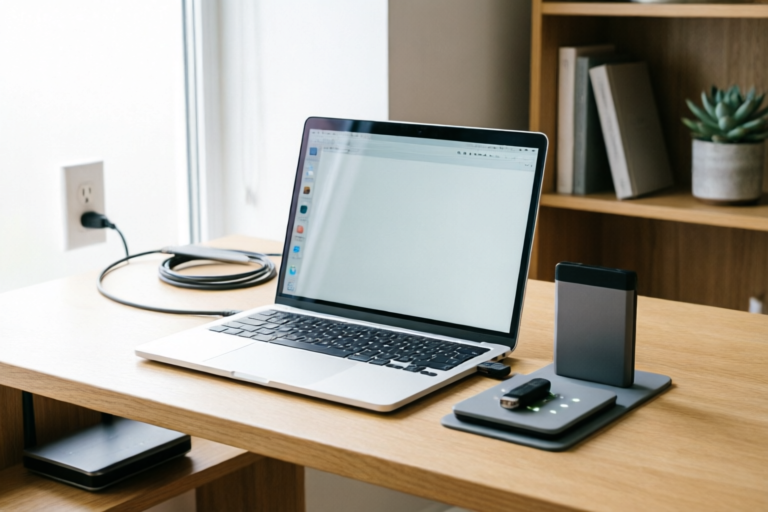
How to fix slow laptop performance issues quickly
Revitalize Your Machine, Restore Your Speed
1. Introduction
In the digital age, our laptops are not just tools; they are gateways to work, entertainment, and communication. Nothing disrupts workflow quite like a sluggish machine that freezes during a crucial presentation or takes minutes to boot up after turning it on. If you are experiencing lag, unresponsiveness, or extended load times, you are likely facing common laptop performance issues. These problems can stem from software bloat, insufficient storage, outdated components, or aging hardware.
This guide is designed to provide immediate performance recovery strategies without requiring technical expertise. Our goal is to walk you through a systematic troubleshooting process that targets the most frequent causes of slowdowns. By following the steps outlined below, you will understand how to manage system resources effectively, reclaim essential storage space, and determine when it is time to invest in hardware upgrades. Whether you are a student juggling multiple tabs or a professional relying on heavy applications, optimizing your laptop ensures a seamless computing experience.
2. Manage Startup and Background Applications
One of the primary reasons a laptop slows down over time is the accumulation of background processes that consume valuable system resources upon startup. When you turn on your device, many applications automatically launch, hiddenly running services that drain CPU power and memory even before you open them.
Disabling Unnecessary Startup Programs
To regain control over your boot process, you need to identify and disable non-essential programs. On Windows systems, the Task Manager is your best ally. Press Ctrl + Shift + Esc simultaneously to open the utility, then navigate to the Startup tab. Here, you will see a list of applications and their impact on startup speed (Low, Medium, High).
Identify programs that are not critical to your daily operation. Common culprits include media players, cloud sync tools, and manufacturer utilities you rarely use. Right-click on the application and select Disable. This does not uninstall the software; it simply prevents it from launching automatically. Be cautious not to disable drivers or security software. Restart your laptop to verify the change.
Closing Resource-Heavy Processes
Sometimes, slowness occurs because a specific program is hogging all available resources. While still in the Task Manager, switch to the Processes tab. Sort the list by CPU, Memory, or Disk usage by clicking on the column headers. Look for applications showing sustained high usage percentages.
If a legitimate program is running too hot, you may need to close it temporarily or check its settings to reduce resource consumption. If you encounter unknown processes using significant resources, it is advisable to search for the filename online to ensure it is not malware. Ending unnecessary tasks immediately frees up bandwidth, allowing your active applications to run smoothly.
3. Perform System Storage Cleanup
A full hard drive acts like a traffic jam for your computer's data processor. As disk space approaches capacity, the operating system struggles to allocate room for temporary files needed for smooth operations. Maintaining a healthy buffer of free space is crucial for maintaining peak performance.
Using Built-in Tools for Temporary Files
Windows includes a robust built-in feature called Storage Sense or Disk Cleanup. To access it, type "Disk Cleanup" in the search bar and select the drive (usually C:). Select categories such as Temporary Internet Files, Temporary Files, and Thumbnails, which accumulate over months of browsing and usage. Check the boxes and click OK to delete them safely.
For deeper cleanup, enable Storage Sense in the Settings menu under System > Storage. You can configure it to automatically remove unused files every month or when your drive is low on space. This automated maintenance prevents clutter from building up again.
Emptying the Recycle Bin and Old Files
The Recycle Bin is often overlooked until it fills up, storing deleted files indefinitely. Regularly empty this trash bin to release immediate gigabytes of space. Additionally, audit your Downloads, Documents, and Desktop folders. These locations tend to become repositories for old installers, PDFs, and images.
Moving large media files to an external hard drive or cloud storage solution like OneDrive or Google Drive can further declutter your local system. Keep only active working files on your main drive. Aim to keep at least 15-20% of your total drive space free to ensure efficient indexing and defragmentation.
4. Update Operating System and Drivers
Outdated software is a silent killer of performance. Software developers frequently release patches that fix bugs, optimize coding efficiency, and enhance security protocols. Running an obsolete version of your operating system or hardware drivers can lead to conflicts that cause stuttering and crashes.
Installing Latest OS Patches
Go to Settings > Update & Security > Windows Update and click Check for updates. Install any pending cumulative updates. Do not skip feature updates; they often contain significant performance optimizations for newer hardware. After updating, restart your computer fully rather than just signing out to apply changes.
Updating Hardware Drivers
Drivers act as translators between your software and your hardware components, such as the graphics card and sound card. To update them manually, right-click the Start button and select Device Manager. Expand categories like Display adapters and right-click your graphics card to select Update driver. Choose Search automatically for drivers.
While automatic updates work, manufacturers sometimes host the newest drivers on their own websites (e.g., NVIDIA, AMD, Dell). Visiting the official support page for your laptop model ensures you download the most stable and optimized versions specifically tailored for your device architecture. Keeping drivers current prevents compatibility issues that trigger system instability.
5. Evaluate Hardware Upgrade Possibilities
If software optimizations fail to yield satisfactory results, your laptop may have reached the limits of its physical capabilities. Hardware upgrades offer the most dramatic improvement in speed and longevity. This step involves assessing whether adding components will justify the cost.
Switching from HDD to SSD
Perhaps the single most impactful upgrade you can make is switching from a traditional Hard Disk Drive (HDD) to a Solid State Drive (SSD). An HDD uses spinning magnetic platters, which are mechanically slower, whereas an SSD uses flash memory with no moving parts. This difference translates to near-instant boot times and faster file transfers. Even a basic SATA SSD can make a decade-old laptop feel brand new. Replacing the drive requires cloning your existing data or performing a fresh OS installation.
Adding More RAM
Random Access Memory (RAM) allows your computer to store data temporarily for quick access by the CPU. If you frequently multitask with browser tabs, video editing software, or virtual machines, you may be hitting a memory ceiling. Adding more RAM reduces reliance on the slower swap file on your hard drive. Check your laptop's specifications to see if it supports additional RAM modules. Increasing RAM from 4GB to 8GB or 16GB can significantly improve responsiveness in heavy workloads.
6. Conclusion and Preventive Measures
Restoring your laptop's speed does not always require replacing the entire device. By systematically managing startup applications, performing regular storage cleanup, and ensuring all software is up to date, you can recover a significant amount of lost performance. For older machines, investing in an SSD or extra RAM provides a second life for your hardware, delaying obsolescence.
Summary of Key Troubleshooting Steps
- Optimize Boot Load: Disable unwanted startup items via Task Manager.
- Maintain Health: Run Disk Cleanup monthly and empty the Recycle Bin.
- Stay Current: Keep Windows and drivers updated to prevent bugs.
- Hardware Matters: Consider SSD and RAM upgrades if software tweaks plateau.
Recommend Regular Maintenance Habits
To prevent future performance drops, integrate these habits into your routine. Schedule a weekly check of your running processes and a monthly review of your installed applications. Avoid installing unverified software, as 'bloatware' often comes bundled with downloads and degrades performance over time. Additionally, ensure your laptop vents are clean; overheating causes processors to throttle their speed to cool down, leading to sudden slowdowns. With consistent care, your laptop will remain a fast, reliable partner in your daily life.
Comments

Quick question, does updating drivers sound risky? Afraid I'll mess something up at random times.

Honestly just switching from HDD to SSD is the best money you can spend on an older machine.

Also check your browser extensions! Had one running in background sucking up all my RAM.

My office IT locked me out of Task Manager 😭 Any workaround without admin rights?

I've been struggling with this on my 2015 Dell. Disabled startup apps but still lags on video calls. Might actually need an SSD now...

Step 3 saved my laptop! Deleted like 20GB of temp files I didn't know were there. Feels like new again.