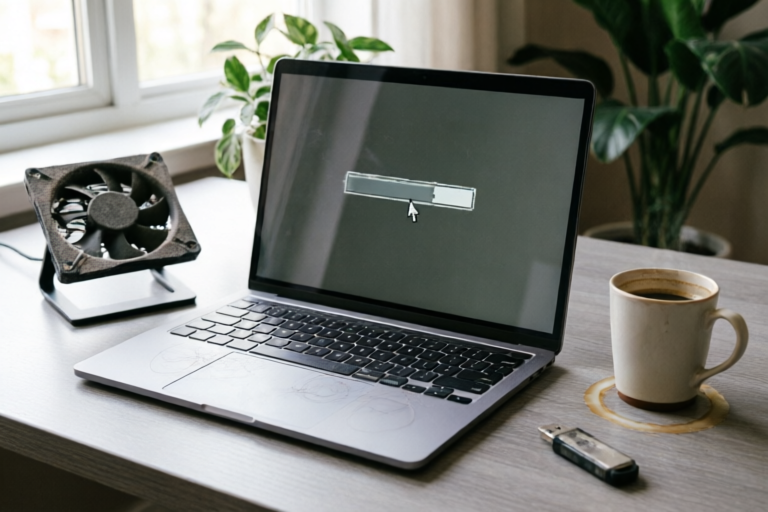
How to Fix a Slow Computer System
Speed Up Your Computer Today!
Introduction to Common Causes of a Slow Computer System
A slow computer system can be frustrating, especially when you need to get work done or enjoy entertainment. There are several factors that can contribute to a sluggish system, including insufficient disk space, too many startup programs, outdated software, and malware infections. Regular maintenance and troubleshooting are essential to keep your computer running smoothly.
Clearing Up Disk Space
Disk space is one of the most critical factors affecting system performance. When your hard drive is nearly full, your computer may struggle to allocate enough space for temporary files, leading to slower operations. By deleting unnecessary files and managing your storage more effectively, you can significantly improve your computer’s speed.
Step-by-Step Guide on Deleting Unnecessary Files
- Identify Large Files: Use tools like Disk Usage Analyzer to find large files and folders that consume significant space.
- Empty Recycle Bin: Make sure to empty your Recycle Bin to free up space.
- Delete Temporary Files: Use the built-in Disk Cleanup tool (Windows) or similar utilities to remove temporary internet files, system cache, and other unnecessary data.
- Uninstall Unused Applications: Remove programs you no longer use. For Windows users, go to Control Panel > Programs > Uninstall a program.
- Manage Downloads: Check your download folder and delete old or unused downloads.
Managing Startup Programs
Startup programs can significantly affect how long it takes for your computer to boot up. Many applications set themselves to launch automatically when you start your computer, which can slow down the process. Disabling non-essential applications from starting automatically can make a noticeable difference.
Instructions for Disabling Non-Essential Applications
- Windows Users: Press
Ctrl + Shift + Escto open Task Manager, click on the Startup tab, right-click on any unnecessary program, and select Disable. - Mac Users: Go to System Preferences > Users & Groups > Login Items, and uncheck any applications you don't want to launch at startup.
Updating Software and Drivers
Outdated software and drivers can cause your computer to run slowly. Manufacturers frequently release updates to fix bugs, enhance security, and improve overall performance. Keeping your operating system, applications, and hardware drivers up-to-date ensures that your system runs efficiently.
Guidance on Keeping Your System Updated
- Enable Automatic Updates: Turn on automatic updates for your operating system to ensure you always have the latest patches.
- Check for Application Updates: Visit the official websites of your installed applications to check for updates.
- Update Drivers: Use tools like Driver Easy or Dell Driver Update Utility to ensure all your drivers are current.
Performing a System Scan for Malware
Malware infections can severely impact your computer’s performance. Viruses, spyware, and other malicious programs can hog system resources, slow down processes, and even corrupt files. Conducting regular scans with reliable antivirus software can help detect and remove these threats.
Detailed Steps for Using Antivirus Software
- Select a Reliable Antivirus: Choose an antivirus program that offers real-time protection, such as McAfee, Kaspersky, or AVG.
- Run a Full System Scan: Launch the antivirus software and initiate a thorough scan of your entire system.
- Remove Detected Threats: Follow the prompts to quarantine or remove any detected malware.
- Keep Your Antivirus Updated: Ensure your antivirus definitions are always up-to-date to catch the latest threats.
Optimizing System Settings
Tweaking system settings can lead to noticeable improvements in performance. Adjusting power options, visual effects, and background processes can help your computer run faster without compromising functionality.
Tips for Adjusting System Settings
- Power Options: Go to Control Panel > Power Options and choose a plan that balances performance and energy efficiency.
- Visual Effects: Right-click on the desktop, select Personalize, and adjust visual effects under Performance Information and Tools.
- Background Processes: Use Task Manager to end unnecessary background processes.
Conclusion: Maintaining Your Computer's Speed
In conclusion, maintaining your computer's speed involves regular maintenance and proactive troubleshooting. By clearing up disk space, managing startup programs, updating software and drivers, scanning for malware, and optimizing system settings, you can ensure your computer runs smoothly and efficiently. Implement these solutions regularly to keep your system performing at its best.
Comments

I do this every month. Keeps my system running like new!

I disabled some visual effects and it made my system more responsive. Worth a try!

Tweaking power options did wonders. Now my laptop lasts longer too!

Clearing up disk space was a no-brainer but I didn't know where to start. Great guide!

After scanning for malware, my system is much faster now. Thanks for the tip!

Updating my drivers made a huge difference. Didn't realize they were so outdated.

Same issue here. My PC was taking forever to start up. Disabling some startup programs really helped!