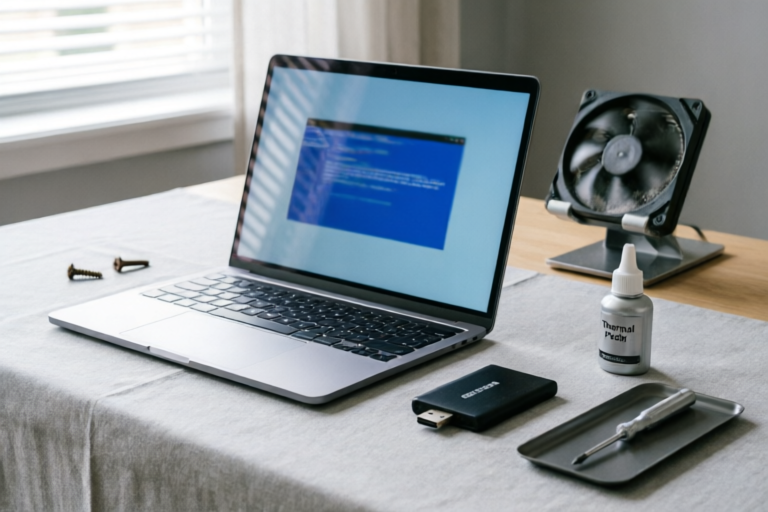
How to Fix a Slow Computer
Boost Your Computer's Speed with These Proven Techniques
Introduction
Overview of Common Causes for Slow Computer Performance:
Have you ever noticed that your once-fast computer has become sluggish? There are several reasons why this might happen. One of the most common is the accumulation of temporary files and cache data over time. Additionally, running too many programs simultaneously can strain your system resources, leading to a noticeable slowdown. Another frequent culprit is the presence of malware or viruses, which not only slow down your computer but also pose security risks.
Importance of Maintaining Optimal System Performance:
Maintaining optimal system performance is crucial for ensuring smooth operation and extending the lifespan of your computer. A well-maintained machine will run faster, handle multitasking more efficiently, and reduce the likelihood of crashes or errors. It also helps prevent data loss and ensures that your personal information remains secure from potential threats.
Brief Mention of Steps to Be Covered in the Article:
In this article, we'll explore various methods to diagnose and resolve common issues causing your computer to slow down. We'll start by addressing malware and viruses, then move on to removing unnecessary programs, optimizing startup programs, increasing RAM if needed, performing regular maintenance tasks, and finally conclude with some general advice on keeping your system healthy.
Check for Malware and Viruses
Explanation of How Malware and Viruses Can Slow Down a Computer:
Malware and viruses are malicious software designed to harm your computer. They can significantly degrade performance by consuming system resources, creating additional processes, and even corrupting files. Some types of malware, like ransomware, may lock up important data until a ransom is paid, while others might install adware that continuously displays advertisements, further slowing down your browsing experience.
Steps to Scan and Remove Malicious Software Using Built-In Tools or Third-Party Antivirus Programs:
To protect against malware and viruses, it’s essential to use reliable antivirus software. Many operating systems come with built-in protection tools, such as Windows Defender, which can be used to perform thorough scans. For added security, consider installing third-party antivirus programs like Bitdefender or Kaspersky. Make sure to keep these programs updated so they can detect new threats effectively.
Tips for Preventing Future Infections:
To minimize the risk of infection, always download files from trusted sources and avoid clicking suspicious links. Enable automatic updates for your operating system and antivirus software to ensure you have the latest security patches. Additionally, use strong passwords and enable two-factor authentication whenever possible.
Uninstall Unnecessary Programs
Discussion on How Unused Applications Can Consume System Resources:
Unused applications can take up valuable space on your hard drive and consume system resources, contributing to slower performance. Over time, many people accumulate a large number of programs that they no longer need or use regularly. These background processes can drain CPU power, memory, and disk space, making your computer feel sluggish.
Instructions for Identifying and Removing Unwanted Programs Through Control Panel or Dedicated Software:
To identify and remove unnecessary programs, open the Control Panel on Windows and navigate to 'Programs' > 'Programs and Features'. Here, you can see a list of all installed applications and uninstall those you no longer need. Alternatively, you can use dedicated software like Revo Uninstaller, which provides more advanced options for removing stubborn programs completely.
Recommendation to Regularly Review Installed Applications:
It’s a good practice to periodically review the list of installed applications on your computer. This helps ensure that you’re not wasting valuable resources on programs you don’t use anymore. By doing so, you can free up space and improve overall system performance.
Optimize Startup Programs
Explanation of How Multiple Programs Starting Automatically Can Impact Performance:
When your computer starts up, numerous programs launch automatically, each consuming its share of system resources. This can lead to delays when booting and reduced performance during normal use. The more programs that start automatically, the longer it takes for your computer to become fully operational.
Guidance on Managing Startup Items Via Task Manager or System Configuration Utility:
To manage which programs start automatically, you can use the Task Manager. Press Ctrl + Shift + Esc to open it, go to the 'Startup' tab, and disable any unnecessary entries. Alternatively, you can use the System Configuration utility (msconfig) to achieve similar results. Both methods allow you to selectively enable or disable startup items based on their importance.
Suggestion to Only Enable Essential Programs at Startup:
By minimizing the number of programs that start automatically, you can greatly enhance your computer’s boot-up speed and overall responsiveness. Focus on enabling only those applications that are truly necessary for your daily workflow.
Increase RAM and Upgrade Hardware (If Necessary)
Overview of How Insufficient RAM Can Affect System Speed:
RAM (Random Access Memory) plays a critical role in determining how quickly your computer can process tasks. When there isn't enough RAM available, the system relies more heavily on virtual memory stored on the hard drive, which is much slower than actual RAM. This can result in significant performance degradation, especially when running resource-intensive applications.
Information on Checking Current RAM Usage and Capacity:
To check your current RAM usage and capacity, right-click on the taskbar and select 'Task Manager'. Go to the 'Performance' tab and look under 'Memory'. You’ll see details about total installed RAM, currently used memory, and available space. If your RAM usage consistently reaches near full capacity, it might be time to consider an upgrade.
Considerations for Adding More RAM or Upgrading Other Hardware Components Like SSDs:
If you determine that your computer could benefit from more RAM, purchasing additional modules is often straightforward. Ensure compatibility with your motherboard before making a purchase. Additionally, upgrading to an SSD (Solid State Drive) can provide substantial improvements in read/write speeds compared to traditional HDDs (Hard Disk Drives), further boosting performance.
Perform Regular Maintenance Tasks
Explanation of the Benefits of Routine Maintenance Such as Disk Cleanup, Defragmentation, and Updating Drivers:
Regular maintenance tasks help keep your computer running smoothly. Disk cleanup removes temporary files and other unnecessary data, freeing up valuable storage space. Defragmentation organizes files on your hard drive, improving access times. Updating drivers ensures compatibility with newer software versions and enhances functionality.
Step-by-Step Instructions for These Tasks Using Windows Tools:
For disk cleanup, press Win + X and select 'Disk Cleanup'. Choose the drive you want to clean and follow the prompts. To defragment your hard drive, open Command Prompt as Administrator and type defrag C:. For driver updates, go to Device Manager and update drivers individually or let Windows do it automatically.
Emphasis on Scheduling Regular Maintenance Checks:
Setting aside time every few weeks or months for maintenance ensures that your computer stays in top condition. This proactive approach helps prevent small issues from turning into bigger problems down the line.
Conclusion
Recap of Key Points Discussed in the Article:
We’ve covered several ways to address common causes of slow computer performance, including checking for malware and viruses, uninstalling unnecessary programs, optimizing startup programs, increasing RAM if necessary, and performing regular maintenance tasks. Each of these steps contributes to improving the overall speed and efficiency of your system.
Final Advice on Staying Proactive About Computer Maintenance:
Remember, maintaining your computer isn’t just about fixing problems after they occur; it’s also about preventing them before they happen. Regularly reviewing installed applications, monitoring startup programs, and keeping your system updated are all part of being proactive.
Encouragement to Apply Learned Techniques for Better System Performance:
By applying the techniques outlined in this article, you can enjoy a faster, more efficient computing experience. Take action today and watch your computer spring back to life!
Comments

Great tips! I'll definitely start doing regular maintenance from now on.

What about cleaning the dust inside the computer? Could that help with speed too?

Disk cleanup and defragging made a big difference. My old laptop feels brand new again.

I added more RAM and upgraded to an SSD. Huge difference in speed. Highly recommend it!

Managing startup programs really helped. I disabled all non-essential apps and my computer boots up way faster now.

I had no idea malware could cause so much trouble. Ran a full scan and removed a few viruses. Much better now.
Same issue here. My computer was running super slow and I couldn't figure it out. After uninstalling some unused programs, it's much faster now!