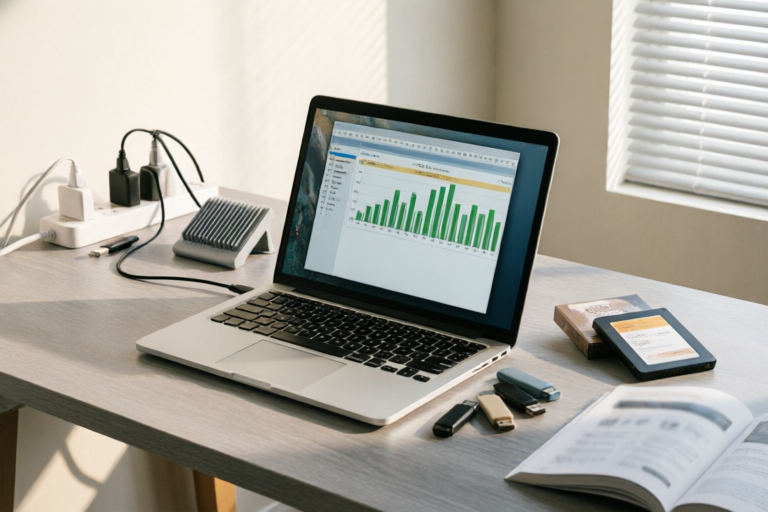
How to Fix Slow Computer Performance
Speed Up Your Computer Today!
Introduction to Slow Computer Performance
Definition and common symptoms of slow computer performance: Slow computer performance can be frustrating and hinder productivity. It may manifest as sluggish response times, frequent freezing, or long boot-up times. These issues can stem from various factors, including insufficient RAM, too many startup programs, outdated drivers, or even low disk space.
Importance of maintaining optimal computer speed for productivity: A fast computer enhances efficiency by reducing downtime and improving overall user experience. By addressing these issues, you can ensure that your device operates smoothly, leading to increased productivity and a more enjoyable computing experience.
Identify the Cause of Slow Performance
Common reasons for slow computer performance: There are several potential culprits behind slow computer performance. Insufficient RAM, too many startup programs, fragmented hard drives, and outdated drivers are just a few examples. Each of these factors can significantly impact the overall speed and responsiveness of your machine.
Tools and methods to diagnose the issue: To pinpoint the exact cause of your computer's slowness, use built-in tools such as Task Manager and Resource Monitor. These utilities provide valuable insights into CPU usage, memory consumption, and other critical metrics. Additionally, third-party diagnostic software can offer more detailed analyses if needed.
Optimize Startup Programs
Explanation of how unnecessary startup programs can slow down your computer: Many applications automatically launch at startup, consuming valuable resources and slowing down the boot process. Disabling non-essential startup applications can dramatically improve the initial loading time and overall system responsiveness.
Step-by-step guide on disabling non-essential startup applications:
- Press Ctrl + Shift + Esc to open Task Manager.
- Navigate to the Startup tab.
- Select each program you want to disable and click Disable.
- Restart your computer to see the difference.
Clean Up Disk Space and Uninstall Unused Software
Importance of having sufficient free disk space for better performance: Running out of disk space can severely impact your computer's performance. With limited storage, the operating system may struggle to allocate necessary resources, leading to slower operations and increased lag.
Instructions on cleaning up temporary files and uninstalling unused software:
- Use Windows Cleaner or CCleaner to remove temporary files, cache, and other clutter.
- Uninstall any software you no longer need through the Control Panel or Settings app.
- Consider using Disk Cleanup to free up additional space.
Update Drivers and Operating System
Role of outdated drivers in causing performance issues: Outdated or incompatible drivers can lead to system instability, crashes, and reduced performance. Ensuring all drivers are up-to-date is crucial for maintaining optimal functionality.
Guidance on updating drivers and ensuring your operating system is current:
- Visit the manufacturer’s website to download the latest drivers.
- Enable automatic updates in Windows settings to keep your OS current.
- Regularly check for updates to both hardware and software components.
Consider Hardware Upgrades
When software optimization isn't enough: exploring hardware upgrades like more RAM or a faster SSD: If software optimizations don't yield satisfactory results, it might be time to consider hardware upgrades. Adding more RAM or switching to an SSD can significantly enhance your computer's performance.
Pros and cons of upgrading vs. replacing the entire system:
- Upgrading: Pros include lower cost, minimal disruption, and the ability to extend the life of your current hardware. Cons involve limited improvements compared to a full replacement.
- Replacing: Pros include a complete overhaul with the latest technology, potentially higher performance gains. Cons include higher upfront costs and the need to set up a new system.
Conclusion and Final Tips
Summary of key points discussed in the article: We explored various ways to address slow computer performance, including identifying the root cause, optimizing startup programs, cleaning up disk space, updating drivers, and considering hardware upgrades. By following these steps, you can restore your computer to its optimal state and enjoy a smoother, faster computing experience.
Additional tips for maintaining long-term computer performance: Regular maintenance is key to keeping your computer running smoothly. Schedule routine checks, clean your hardware periodically, and back up important data to prevent data loss. Stay proactive about updates and be mindful of your system's health to ensure long-term reliability.
Comments

Before doing anything, back up your data. You never know what might go wrong during updates or cleanups.

Adding more RAM really improved things. Worth considering if you're running lots of programs at once.

Always make sure your OS is updated. It fixed my sluggish performance issues.
This worked for me! I had so many apps starting automatically. Disabled a few and boom, instant speed boost.

I upgraded to an SSD and my PC feels brand new. Worth the investment if you're thinking about it.

Cleaning up disk space made a huge difference. Now my computer runs smoother than ever!
I tried this but still slow. Any tips for when updating drivers doesn't fix it?
Same issue here. My computer was taking forever to start up. Disabling unnecessary startup programs really helped!