Troubleshooting & Fixes
How to Fix Slow Internet Connection Issues on Wi-Fi Network?
Connect Faster, Live Better.
## Introduction to Common Wi-Fi Speed Issues
In the modern digital age, a reliable and fast internet connection is no longer a luxury; it is a fundamental utility akin to electricity or running water. From working remotely and attending virtual meetings to streaming high-definition movies and engaging in online multiplayer gaming, our daily activities are increasingly tethered to the stability of our network. Consequently, when your Wi-Fi speed drops unexpectedly, the impact is immediate and pervasive. You experience buffering videos, delayed audio during calls, frustratingly long download times, and increased latency that disrupts competitive gaming.
These slow connection symptoms manifest in various ways. Some users notice a sudden drop in download speeds that fail to match their subscribed plan. Others encounter sporadic disconnects where the device loses the Wi-Fi signal entirely. In more severe cases, the network may appear connected, but data transfer is virtually non-existent, a phenomenon often referred to as \"ping saturation.\" Beyond the annoyance, slow internet has tangible negative impacts on productivity. For professionals relying on cloud-based applications, video conferencing platforms like Zoom or Teams, or large file uploads, a sluggish connection can lead to missed deadlines, dropped client calls, and professional embarrassment.
Entertainment is also compromised. Streaming services automatically downscale video quality when bandwidth fluctuates, ruining the visual experience. Online gamers suffer from lag spikes that result in lost matches or character deaths. Furthermore, smart home ecosystems can falter, causing delays in automated commands or security camera footage gaps. Understanding these symptoms is the first step toward resolution. Before diving into complex fixes, it is crucial to acknowledge that slow internet is rarely a singular issue; it is often a combination of environmental factors, hardware limitations, software glitches, and service provider constraints. This guide aims to demystify these causes and provide a systematic approach to restoring your network to peak performance.
## Fundamental Diagnostic and Reset Steps
Before altering settings or purchasing new equipment, the most effective strategy is to revert your network to a known functional state using fundamental troubleshooting actions. These initial steps address the majority of transient software glitches and memory leaks that often bog down networking hardware.
The first and most critical action is power cycling your network devices. This process involves turning off your modem and router, waiting for a specified period, and then restarting them. While it sounds rudimentary, this step clears the router's volatile memory (RAM), flushing out temporary files, corrupted packet queues, and stuck connections that may have accumulated over days or weeks. To perform this correctly, unplug both the modem and the router from the electrical outlet. Wait for at least 30 seconds. This pause allows the capacitors within the circuitry to fully discharge. Then, plug in the modem first and wait for its status lights to stabilize, indicating a successful connection to your Internet Service Provider (ISP). Once the modem is online, plug in the router and wait for it to boot up. Only after both are fully operational should you reconnect your devices. This sequence ensures the router receives a clean IP address assignment from the modem.
Next, you must inspect the physical cabling connecting your infrastructure. Even if the cables look intact, internal wire breakage or loose connectors can degrade signal integrity, especially between the modem and the main wall outlet or the modem and the router. Check Ethernet cables for fraying or bent pins. Ensure that coaxial cables are screwed in tightly, as a loose connection can introduce noise into the signal path. Replace any old Ethernet cables with Cat5e or higher specifications, such as Cat6, to support gigabit speeds. Physical damage can restrict data throughput significantly, limiting a multi-gigabit connection to barely dial-up speeds.
Isolating specific faulty hardware is another vital diagnostic step. Sometimes the bottleneck lies not with the internet itself, but with the device trying to connect. Run a speed test on multiple devices connected to the same network. If only one device experiences slowness while others perform well, the issue is local to that specific computer or smartphone, possibly due to outdated network drivers, malware, or background updates. If all devices are slow, the problem lies within the network infrastructure itself. Additionally, try connecting a device via an Ethernet cable directly to the modem. If the wired connection is fast, your issue is strictly Wi-Fi-related. If the wired connection is also slow, the problem likely originates with your ISP or the modem unit itself.
Finally, ensure that your devices themselves are capable of handling current network loads. An older laptop with a Wi-Fi card limited to 802.11g standards cannot achieve gigabit speeds, regardless of how powerful your router is. Checking the specifications of your network adapter can save time spent on router tweaks that cannot overcome hardware barriers.
## Enhancing Signal Coverage and Reducing Interference
Once basic hardware integrity is confirmed, the focus shifts to the propagation of radio frequency (RF) signals. Wi-Fi operates on frequencies—typically 2.4 GHz and 5 GHz—that can be blocked, absorbed, or scattered by the environment. Optimizing signal coverage is often the difference between weak connectivity in distant rooms and seamless full-home coverage.
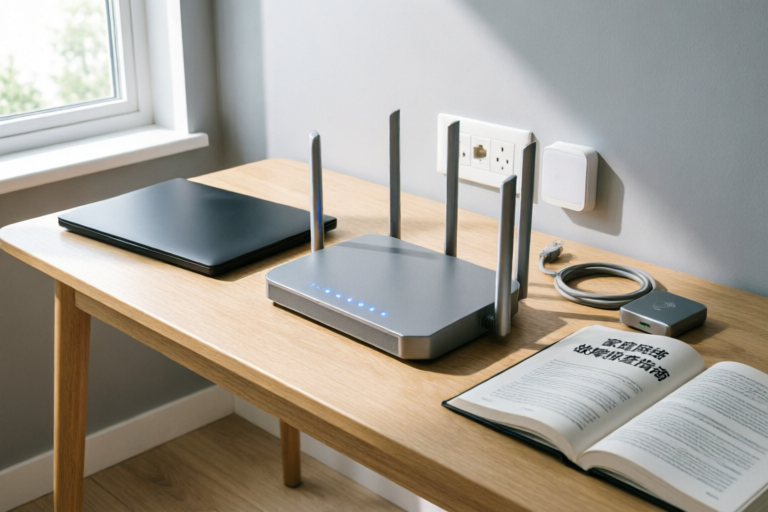
Router placement plays a pivotal role in signal strength. Ideally, your router should be placed in a central location within your home or office. If the router is tucked away in a corner basement or a locked cabinet, the signal must travel further and penetrate more obstacles to reach the edges of your space. Elevate the router as well; placing it on a shelf or desk rather than the floor helps reduce ground absorption. Furthermore, keep the router away from metal objects, appliances, and large bodies of water (like fish tanks), which reflect or absorb RF signals. Avoid placing the router behind televisions or inside entertainment centers, as the heat generated by electronics and the metal shielding of the devices create a Faraday cage effect, trapping the signal.
Minimizing physical obstructions is equally important. Different building materials attenuate Wi-Fi signals to varying degrees. Drywall presents minimal resistance, but concrete walls, brick, and floors containing steel mesh can drastically reduce range. Mirrors and glass windows coated with low-e insulation films can also interfere with transmission. If you live in a multi-story home, consider placing the router on the middle floor to allow vertical signal propagation both up and down. If your floorplan makes a central location impossible, you may need to accept that signal strength will vary by room, necessitating secondary solutions.
Mitigating electronic signal interference is a technical challenge often overlooked. The 2.4 GHz band is particularly crowded. Everyday devices operate on similar frequencies. Microwave ovens leak radiation while heating food, momentarily disrupting Wi-Fi. Wireless baby monitors, cordless phones, and Bluetooth speakers compete for bandwidth on the same spectrum. Additionally, neighboring Wi-Fi networks contribute to congestion. In densely populated areas like apartment complexes, dozens of networks may overlap on the same channels, creating cross-talk and reducing throughput. To mitigate this, switch to the 5 GHz band if supported. The 5 GHz band offers faster speeds and less interference, though it has a shorter range and poorer wall penetration. Utilize a Wi-Fi analyzer app on your phone to scan the airwaves and identify which channels are congested versus which are clear. Many modern routers offer an \"Auto\" setting that selects the best channel, but manual selection on a dedicated tool often yields better results. Changing your channel can instantly reduce latency caused by neighbor network collisions. Finally, turn off unused guest networks, as leaving them active consumes resources and potential security vulnerabilities that might otherwise impact your main connection's efficiency.
## Tuning Router Settings and Bandwidth Usage
For users comfortable navigating administrative interfaces, tuning router settings can unlock significant performance gains. Modern routers are sophisticated computers running mini-operating systems that require management to function optimally. Neglecting these configurations can leave your network underperforming relative to its hardware capabilities.
Updating router firmware is the most critical maintenance task for security and stability. Manufacturers frequently release updates that patch security vulnerabilities and improve connection handling algorithms. Check the manufacturer's website or log into your router's admin portal (usually via 192.168.1.1) to see if an update is available. An outdated firmware version might lack support for newer modulation techniques used by ISPs, leading to inefficiencies.
Selecting optimal Wi-Fi channels is part of configuration. As mentioned earlier, the 2.4 GHz band typically splits into channels 1, 6, and 11 to avoid overlap. If all three are in use by neighbors, switching to the middle of channel 6 or jumping to a less crowded adjacent channel can help. On the 5 GHz band, there are many more channels available. Set your router to \"Non-Dynamic\" or \"Fixed\" channel mode if auto-selection is failing, locking onto a wide, clear channel like 149 or 161 depending on your region's regulations.
Managing Quality of Service (QoS) is a feature designed to prioritize traffic. If your household streams 4K video while someone else downloads a large file, QoS allows you to instruct the router to give precedence to real-time traffic. You can configure rules to prioritize voice and video packets over general web browsing or file transfers. Most router interfaces have a \"Bandwidth Management\" section where you can specify the application type or MAC address of the device needing priority. This prevents a large backup job on a PC from choking the bandwidth for a business conference call on a mobile device. However, be cautious not to set QoS rules too rigidly, as this can sometimes cause other devices to wait unnecessarily for the queue to empty.
Another advanced setting involves DNS configuration. By default, your ISP assigns you its DNS servers, which are not always the fastest. Switching to public DNS servers like Google Public DNS (8.8.8.8), Cloudflare (1.1.1.1), or OpenDNS can sometimes improve name resolution speeds, making websites feel like they load slightly faster, although this does not inherently increase raw download bandwidth. Additionally, disable features like UPnP (Universal Plug and Play) if you do not use peer-to-peer file sharing or gaming consoles that rely on automatic port forwarding, as disabling unnecessary services reduces the attack surface and processing overhead on the router CPU. Ensure your encryption protocol is set to WPA2-AES or WPA3. Older protocols like WEP or TKIP force slower negotiation times between devices and the router, capping theoretical speeds significantly lower than what is advertised.
## Assessing Hardware Limitations and ISP Plans
Despite diligent troubleshooting, there may come a point where software and placement optimizations yield diminishing returns. This often indicates that your physical hardware or your service contract is the limiting factor. Identifying whether you need to upgrade equipment or negotiate a plan change with your provider is the next logical phase.
Assessing hardware age is straightforward. Consumer-grade modems and routers typically have a lifespan of 3 to 5 years. Technology evolves rapidly; if your router only supports Wi-Fi 4 (802.11n) or even early Wi-Fi 5 (802.11ac), it will struggle to handle the demands of modern devices like laptops, tablets, and smartphones equipped with Wi-Fi 6 (802.11ax) cards. Older routers often lack the processing power to manage multiple simultaneous connections efficiently, resulting in CPU bottlenecks. Look at your model number and compare it to current market standards. Replacing a decade-old router with a modern Wi-Fi 6 model can yield dramatic improvements in speed and range. Investing in a mesh network system is another option for larger homes. Unlike traditional extenders which duplicate the existing signal, mesh nodes communicate with each other to form a unified grid, eliminating dead zones and ensuring seamless roaming between devices. While expensive, mesh systems are engineered specifically to maintain consistent speed across vast square footages.
Checking ISP plans is also essential. Your subscription tier dictates the maximum speed you should receive. However, marketing numbers often refer to download speeds under ideal conditions. Actual average speeds usually vary by 10-20%. If your plan advertises 100 Mbps but you consistently get 20 Mbps on a wired connection, you are experiencing a provisioning error. Contact your ISP support to verify the line profile is correct. Sometimes, technicians can remote-adjust the line speed or schedule a visit to refresh the signal at the node. Conversely, if you pay for gigabit fiber but have old copper wiring in your house terminating in old ports, you physically cannot achieve that speed indoors. In this case, upgrading your internal wiring or asking for a direct fiber termination in the main room might be necessary.
Scenarios requiring ISP contact include persistent downtime, speed drops during peak hours, or data caps being hit. Many providers throttle speeds for heavy downloaders once a certain data threshold is reached. Review your monthly bill and usage reports. If you find yourself constantly capped during peak times (usually 6 PM to 10 PM), switching to a higher-tier unlimited plan or moving to a fiber optic provider might be the only viable solution. Cable internet shares bandwidth among a neighborhood segment, meaning neighbors' activity affects your speed. Fiber offers dedicated lines to your premises, mitigating this shared-load issue. If you reside in an area with limited options, investing in a high-end router becomes even more critical to squeeze the maximum performance out of whatever connection you can secure.
## Summary and Long-Term Maintenance Tips
Resolving slow Wi-Fi issues requires a methodical approach, combining physical inspection, environmental optimization, and technical configuration. To summarize, we began by acknowledging the frustration and impact of slow internet on productivity and leisure. We moved through fundamental diagnostics, emphasizing power cycling and checking physical cabling to rule out simple hardware failures. We explored signal coverage, advising on central router placement and minimizing interference from household appliances and neighbors' networks. Technical tuning covered firmware updates, channel optimization, and the strategic use of Quality of Service to manage bandwidth. Finally, we assessed whether the solution required replacing aging hardware or upgrading your ISP subscription plan.
To ensure sustained network performance and prevent future slowdowns, adopt routine maintenance habits. Schedule regular reboots of your router, perhaps weekly, to clear cache and refresh connections. Periodically run speed tests to establish baselines; monitor trends over months to catch degradation early. Secure your network against unauthorized usage by using strong passwords and enabling WPA3 encryption. A stolen Wi-Fi password is essentially a free ride for thieves who will consume your bandwidth. Keep a record of your router credentials and firmware versions for easy access when seeking support.
Consider creating a network inventory document. List all devices connected to your network and their ages. Identify any legacy devices that may be dragging down the overall network performance due to incompatible protocols. If you expand your living space or add more smart home devices, review your capacity planning. Do not wait for the internet to break before optimizing it. Being proactive ensures that when the next big movie season releases or the holiday shopping season arrives, your digital infrastructure remains robust enough to handle the load. By following these strategies, you transform your Wi-Fi from a source of anxiety into a reliable foundation for your digital life, ensuring that your connection lives up to the speed promised when you signed up. Remember, technology is only as good as the care it receives; treat your network infrastructure with the same diligence as your personal devices for optimal longevity and performance.
Comments

SpeedTestFanatic
This guide is legit. Did steps 1 and 3 and my speed went from 10mbps to 45mbps instantly. Should have checked cables first tbh
👍 17👎 0

Renter_Dave
Does anyone recommend a mesh system for older houses? Walls are thick and i hate dead zones in the bedroom
👍 0👎 0

Gamer_Xx
My ping dropped like 50ms after turning off the bluetooth speaker nearby. Apparently those things interfere with 2.4ghz signals crazy
👍 24👎 0

WorkFromHome_Sarah
Had the exact same problem during zoom calls. Power cycling didn't help until I switched channels on the admin panel.
👍 0👎 0

StudentLife_Alex
Wait, does updating the firmware kill my saved passwords or something? Idk how to find it lol
👍 14👎 0

HomeOwner_Jeff
Finally unblocked my router from behind the TV stand and boom, streaming is back to normal 🙌
👍 1👎 0