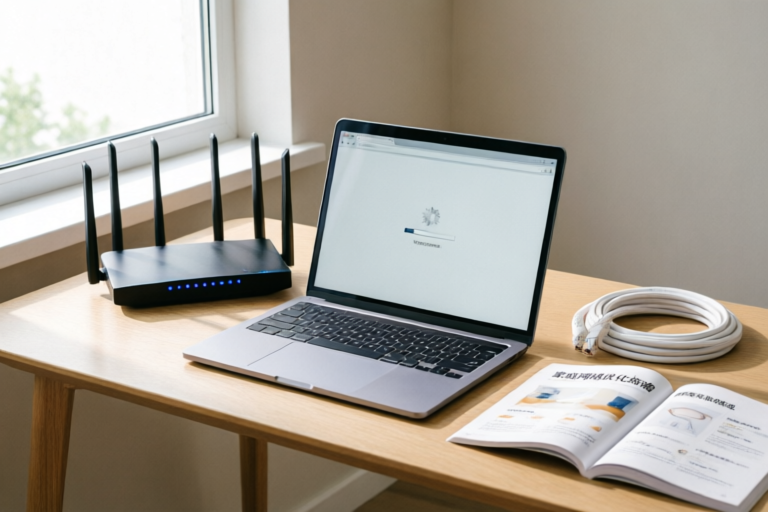
How to Fix Slow Home Internet Connection Quickly?
Streamline Your Speed, Reclaim Your Connection
How to Fix Slow Home Internet Connection Quickly?
In today’s hyper-connected world, a reliable internet connection is no longer a luxury; it is a fundamental utility, essential for remote work, online education, entertainment, and staying in touch with loved ones. Imagine having your entire workflow halted because video conferencing software keeps freezing, or realizing your favorite streaming service has reverted to a pixelated blur right at the climax of a movie. For millions of households, intermittent buffering and sluggish speeds are a daily frustration.
When your internet slows down, it disrupts more than just your data transfer rates—it impacts your productivity and peace of mind. While many users assume the blame lies solely with their Internet Service Provider (ISP), the issue often stems from a combination of local hardware, signal interference, device overload, or inefficient network configuration. This comprehensive guide will walk you through a step-by-step process to diagnose and resolve these issues efficiently.
1. Understand Common Causes of Slow Internet
Before attempting any fixes, it is crucial to understand why your internet might be slowing down. Identifying the root cause saves time and prevents unnecessary spending on new equipment. Slow internet is rarely due to a single factor; it is usually a chain reaction of several minor bottlenecks.
Outdated Hardware and Equipment Age
The most common culprit behind sluggish connections is aging hardware. Routers and modems have lifespans similar to computers or smartphones. If your router was purchased five or six years ago, it may lack the capabilities required to handle modern standards like Wi-Fi 6 (802.11ax). Older devices struggle to manage multiple connected devices simultaneously, leading to latency spikes and reduced throughput. Similarly, the modem provided by your ISP might be reaching its technical obsolescence, unable to decode higher-speed signals even if you are paying for gigabit speeds.
Signal Interference and Physical Obstructions
Wi-Fi operates using radio waves, which behave similarly to visible light—they can be blocked, reflected, or absorbed. Physical obstructions such as thick concrete walls, metal appliances, water sources (like fish tanks), and mirrors can severely degrade signal strength. Furthermore, electronic interference plays a significant role. Microwave ovens, baby monitors, cordless phones, and even Bluetooth devices operate on frequencies that overlap with the 2.4GHz band used by many Wi-Fi networks. If your router is sitting next to a microwave or tucked behind a large TV cabinet, your connection quality will suffer immediately.
High Traffic Usage and Bandwidth Saturation
Bandwidth is finite. Think of it like a highway; if everyone tries to drive on it at once, traffic jams occur. Modern homes often have dozens of connected devices: smart fridges, security cameras, gaming consoles, laptops, and mobile phones. Simultaneous activities—such as someone downloading a massive game update while another person streams 4K video and you attend a Zoom meeting—can saturate your bandwidth. Most residential plans have capped download speeds; if total usage exceeds the limit, every device on the network experiences slowdowns.
Nearby Network Congestion
This is particularly prevalent in apartment complexes or dense suburban neighborhoods. Many neighbors share the same channels on their routers. If five different households are broadcasting on Channel 6, they create a "noise floor" that interferes with your signal. Your router struggles to send data packets through the static created by neighboring networks, resulting in packet loss and retransmissions, which manifest as slow browsing speeds.
2. Perform Quick Hardware Resets and Relocations
Once you have a general idea of the potential culprits, it is time to take action. The good news is that the quickest and most effective fixes often require no purchase whatsoever. Simple maintenance habits can restore up to 50% of your original performance instantly.
Restarting the Modem and Router
Yes, turning it off and on again works wonders. Over time, modems and routers develop memory leaks or get stuck in a processing loop where they hold onto stale connection information. This leads to degraded performance over days or weeks of continuous operation.
- Power Down: Unplug both your modem and your router from the power outlet. Do not just press the button on the back; cut the power completely.
- Wait: Wait for at least 30 seconds. This ensures that any residual electrical charge dissipates and the internal capacitors fully discharge, clearing the temporary memory.
- Reboot Sequence: Plug the modem back in first. Wait for the lights to stabilize (usually about two minutes). Once the modem’s "Online" or "Internet" light is solid, plug the router in. This sequence ensures the modem establishes a clean line connection before the router attempts to distribute that signal.
Cable and Port Inspection
Damaged cables are a silent killer of internet speed. Check the coaxial cable connecting your modem to the wall socket. Look for kinks, cuts, or rusted connectors. Ensure the Ethernet cable connecting the modem to the router is firmly seated in the port labeled "WAN" or "Internet." Replace old Cat5 cables with Cat6 cables if possible, as Cat6 supports faster transmission speeds and reduces interference.
Repositioning Your Equipment
Location matters immensely for Wi-Fi. Ideally, your router should be central to the house, elevated off the floor, and placed in an open area. Avoid hiding it inside a media cabinet or under a desk. High-frequency 5GHz signals do not penetrate solid objects well; therefore, placing the router high up gives it a clearer line of sight to your devices. Move the router away from metal objects, microwaves, and thick masonry walls to reduce signal attenuation.
3. Optimize Wi-Fi Signal Frequency and Channels
If basic resets haven't solved the issue, the problem likely lies in how your router distributes wireless signals. By fine-tuning your frequency bands and communication channels, you can navigate around interference and maximize throughput.
Switching Between 2.4GHz and 5GHz Bands
Most modern routers are "dual-band," offering two distinct Wi-Fi frequencies:
- 2.4GHz: Offers slower speeds but travels farther and penetrates walls better. It is best for smart home devices located far from the router, but it is more prone to congestion from neighbors and household electronics.
- 5GHz: Offers significantly faster speeds and less interference, but it has a shorter range and struggles to penetrate solid obstacles. It is ideal for streaming high-definition video, online gaming, or proximity to the router.
To optimize your connection, connect bandwidth-heavy devices (TVs, PCs, Consoles) to the 5GHz network whenever they are in close proximity. Reserve the 2.4GHz network for devices where distance is a priority. You can manually split these bands in your router settings by removing the "Smart Connect" feature, which sometimes forces devices onto the weaker band automatically.
Changing Router Channels
In a crowded environment, your router and your neighbors' routers might be fighting for the same space on the spectrum. Using a WiFi analyzer app on your smartphone (available for free on iOS and Android), you can scan the airwaves to see which channels are least congested.
Log into your router’s administrative dashboard (usually by entering 192.168.0.1 or 192.168.1.1 in a web browser). Navigate to the Wireless Settings section. Change the channel from "Auto" to a specific number. For 2.4GHz, Channels 1, 6, and 11 are non-overlapping; choose the one with the fewest active networks. For 5GHz, there are more channels available, making it easier to find a clear path. Switching to a cleaner channel can drastically reduce packet loss and latency.
Quality of Service (QoS) Settings
Many modern routers come with Quality of Service (QoS) features. This allows you to prioritize certain types of traffic over others. If you work from home, you can set the router to prioritize VoIP calls or Zoom traffic over file downloads or background updates. Go to the router settings, locate the QoS menu, and configure it to give priority to low-latency applications like video conferencing or gaming, ensuring they aren't slowed down by other household members streaming movies.
4. Manage Background Apps and Network Security
Even with perfect hardware placement, invisible processes running in the background can eat up your bandwidth. Additionally, an unsecured network might be allowing unauthorized users to piggyback on your connection, stealing your speed without you knowing.
Identify and Stop Background Downloads
Cloud storage services (Google Drive, Dropbox, OneDrive) often sync files in the background, silently consuming upload and download bandwidth. Game launchers (Steam, Battle.net, Epic Games) frequently run automatic updates. To stop these:
- Pause Syncs: Open your cloud apps and pause synchronization temporarily while you need maximum speed.
- Schedule Updates: Configure game launchers to download updates only during offline hours or when you are specifically playing a game.
- Check Task Manager: On Windows, open Task Manager > Network tab. On Mac, open Activity Monitor > Network tab. Sort by "Network Usage" to identify which apps are consuming the most data.
Firmware Updates for Router
Just like your computer operating system, your router runs on software called firmware. Manufacturers release updates to patch security holes, fix bugs, and improve stability. An outdated firmware version can lead to known connectivity drops. Check your router manufacturer's website or log in to the admin panel to check for firmware updates regularly. Keeping your router software current ensures it functions at peak efficiency.
Securing Your Network Against Unauthorized Usage
If you live in a dense neighborhood, neighbors could be guessing your Wi-Fi password to access your internet. A secure network is a fast network.
- Strong Encryption: Ensure your router uses WPA2-AES or WPA3 encryption. Avoid WEP or WPA-PSK (TKIP) as they are obsolete and insecure.
- Change Default Passwords: Never leave the default administrator username and password. Hackers know these defaults and can compromise your router settings easily.
- Create a Guest Network: Most routers allow you to create a separate Guest Wi-Fi network. Give visitors credentials to this network rather than your main one. This isolates their traffic from your sensitive devices and prevents accidental bandwidth hogging.
- MAC Address Filtering: For advanced security, enable MAC address filtering. This allows the router to only accept connections from devices with specific hardware IDs, blocking any unknown device from joining entirely.
5. Decide Between ISP Support or Upgrading Plans
If you have exhausted all DIY troubleshooting steps—from resetting hardware to optimizing channels—and your speeds are still below what you are paying for, it is time to look externally. Sometimes, the bottleneck is entirely outside your control.
Running Accurate Speed Tests
Before contacting your ISP, gather evidence. Visit websites like Speedtest.net or Fast.com. Run the test on a wired connection first to isolate Wi-Fi issues. Then run it wirelessly. Compare these results against your plan's advertised speeds. If your wired connection matches the plan but Wi-Fi does not, the issue is internal. If neither matches, the issue is likely with the ISP line or their infrastructure.
Contacting ISP Customer Support
Call your provider and describe the steps you have already taken. Mention the speed test results clearly. Ask them to check for line noise, signal attenuation, or outages in your area. Sometimes, a technician needs to visit your home to adjust the external wiring or install a new ONT (Optical Network Terminal). In many cases, ISPs offer free support checks to avoid losing subscribers to competitors.
Evaluating Upgrade Options
If your speed needs exceed what your current technology offers, consider upgrading:
- Higher Speed Tiers: If your family size has grown and your bandwidth consumption has increased, moving from a 100 Mbps plan to a 500 Mbps or Gigabit plan is a viable solution.
- Mesh Wi-Fi Systems: For large homes where a single router cannot cover the square footage, invest in a Mesh System. These systems use multiple nodes placed throughout the house to create a seamless, high-speed blanket of coverage. They eliminate dead zones caused by weak Wi-Fi signals.
- Wired Connections (Ethernet): Wherever possible, connect stationary devices directly via Ethernet cables. Hardwiring eliminates Wi-Fi interference entirely for those specific devices, guaranteeing maximum stable speeds for desktops or smart TVs.
- Fiber Optic Upgrade: If you are currently on DSL or Cable, check if Fiber-to-the-Home (FTTH) is available in your area. Fiber provides symmetrical upload/download speeds and significantly lower latency compared to copper-based technologies.
Conclusion
A slow internet connection doesn’t have to ruin your digital experience. By systematically understanding the underlying causes—whether they are hardware limitations, signal interference, or background clutter—you can take control of your network. Start with the low-hanging fruit: reboot your devices, move your router to a central location, and check for software updates. Proceed to more advanced tuning like channel management and QoS settings. Only when these measures fail should you contact your ISP or invest in hardware upgrades.
Remember, network optimization is an ongoing process. As new devices enter your home and technology evolves, your setup may need adjustments. Regular maintenance and informed decisions will ensure your home stays connected, fast, and reliable. Take these steps today, reclaim your bandwidth, and enjoy a seamless online life without interruption.
Key Takeaways for Quick Fixes:
- Always restart your modem and router every month.
- Keep your router central and elevated.
- Use 5GHz for speed and 2.4GHz for range.
- Monitor background apps for hidden bandwidth usage.
- Run speed tests before calling support.
Comments

Don't forget firmware updates! Actually fixed some security holes I was worried about.

ISP says I need a higher plan. Feels like a scam sometimes 🙄

Hardware reset fixed my dropouts. Should have done this months ago.
Tried channels but neighbor's signal is too strong. Thinking about upgrading router instead.
Where do I find the channel setting? Router interface looks totally different online.

Is 5GHz really worth it for smart TVs? Still buffering on my current setup.
Didn't realize kids were downloading games. Closed those and things are normal again 😅

Restarted the modem and moved it upstairs. Speed jumped back up immediately. Simple stuff works!