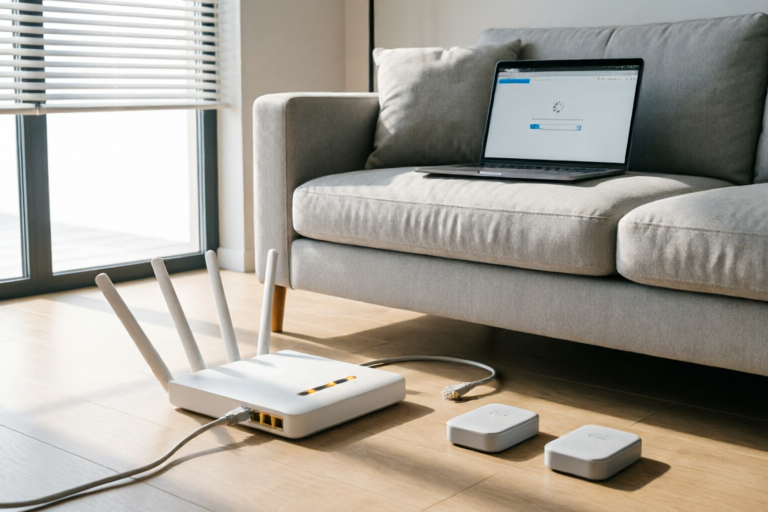
Troubleshooting & Fixes
How to Fix Slow Internet Connection Issues at Home Quickly
Restore Speed, Reclaim Your Time.
## Introduction: Navigating the Digital Gridlock
In our hyper-connected world, a reliable and fast internet connection is no longer a luxury; it is a fundamental utility. Whether you are working remotely, streaming high-definition movies, gaming online, or simply keeping up with loved ones via video calls, latency and low speeds can cause immense frustration. Suddenly, your work-from-home meeting buffers, your favorite series freezes mid-action, and your download speed grinds to a halt. Before you reach for your phone to call customer support or panic-buy new hardware, there are several logical, structured steps you can take to diagnose and resolve these issues yourself.
Fixing slow internet at home isn't just about hitting a restart button; it involves understanding the anatomy of your network, identifying bottlenecks, and optimizing every component from your modem to your laptop. This comprehensive guide walks you through a five-step process designed to quickly identify the root cause of sluggish performance and implement actionable solutions to improve your browsing experience.
## 1. Diagnosing the Root Cause of Sluggish Performance
Before implementing any fixes, you must pinpoint where the problem lies. Is it your Internet Service Provider (ISP), your equipment, or the devices you are using? A systematic diagnosis prevents wasted time on irrelevant solutions.
### Conducting a Baseline Speed Test
The first and most critical step is to verify your actual speeds against what you are paying for. You can do this using reputable platforms like Ookla's Speedtest.net, Fast.com by Netflix, or Google's built-in speed test tool. However, location matters immensely. To get accurate data:
- **Run Tests on Multiple Devices:** Do not rely on a single smartphone. Test on a laptop and a desktop. If only one device is slow, the issue is local to that machine. If all devices are slow, the issue lies with the network infrastructure.
- **Wired vs. Wireless Comparison:** This is the definitive diagnostic step. Connect a computer directly to the router using an Ethernet cable and run the speed test. Then, disconnect the cable and run the same test on Wi-Fi.
- **Result Interpretation:** If the wired connection delivers full speed but the wireless one is slow, your ISP is healthy, and the issue is specifically your Wi-Fi signal or environment. Conversely, if both connections are below your subscribed plan, the bottleneck is likely external (ISP) or upstream (your modem).
### Distinguishing Between External and Internal Issues
Once you have established whether the problem is internal or external, look for tell-tale signs.
- **ISP Outages:** Contact your ISP's website or app to see if there is a reported outage in your zip code. Social media channels for your provider often report issues faster than official support lines.
- **Peak Hours:** Observe if slowness occurs consistently at the same time of day (e.g., 8 PM to 10 PM). This indicates neighborhood congestion, where neighbors share a limited bandwidth pool. This is common in shared coaxial or fiber networks.
- **Packet Loss:** In a speed test, look for the "packet loss" percentage. Consistently high packet loss (above 1-2%) indicates instability in the connection, which can result from faulty cables, old hardware, or line noise.
## 2. Performing Essential Router Resets and Reboots
Despite the simplicity of this step, few users utilize it to its full potential. Power cycling is analogous to restarting a frozen computer application; it clears the system memory and forces the device to renegotiate its connection with the ISP.
### The Proper Power Cycling Procedure
Many users simply press the power button on the front of their modem. This is ineffective because it does not fully drain the capacitors responsible for holding the last state of the system. Follow this disciplined sequence:
1. **Shut Down:** Unplug the power cord from both your modem and your router simultaneously if they are separate units. If they are combined (a gateway unit), unplug just one.
2. **Wait:** This is crucial. Leave them unplugged for at least **30 seconds**. This duration allows the electrical charge stored in the components to dissipate completely, clearing the volatile RAM where error states might be cached.
3. **Restart Order:** Plug the **modem** back in first. Wait until all the indicator lights stabilize (usually the "Online" or "DSL" light turns solid green). This ensures the connection with the ISP is re-established. Only then, plug in the **router**. Wait for the router's WAN/Internet light to turn green.
4. **Device Reconnection:** Turn on your computers, phones, and streaming devices. Allow them to reconnect to the refreshed network.
### Updating Firmware
A static reboot solves temporary glitches, but outdated firmware causes long-term performance drops. Manufacturers release updates to patch security vulnerabilities and improve throughput management.
- Access your router's admin panel (usually by typing 192.168.1.1 into a browser).
- Log in with your credentials (often found on a sticker on the bottom of the router).
- Navigate to the "Administration" or "Firmware Update" tab.
- Click "Check for Updates" and install immediately. Never interrupt this process, as it can brick the device.
## 3. Optimizing Router Placement and Physical Connections
Even the most expensive router struggles if placed in a suboptimal location. Wi-Fi signals are electromagnetic waves; they behave similarly to light and sound, interacting physically with obstacles.
### Strategic Positioning for Signal Coverage
- **Centralize:** Place your router in a central location of your home. Corners or closed cabinets force the signal to navigate further to reach other rooms, causing attenuation (weakening).
- **Elevate:** Keep the router off the floor. Standing it on a shelf or mounting it on the wall improves omnidirectional coverage and avoids floor absorption.
- **Line of Sight:** Avoid placing the router behind large metal objects (fridges, filing cabinets), mirrors, or thick stone walls. These materials reflect or absorb radio frequencies. Also, keep away from fish tanks, as water absorbs 2.4GHz Wi-Fi signals significantly.
### Choosing the Right Band: 2.4GHz vs. 5GHz
Most modern routers broadcast dual bands. Understanding the trade-off is vital for optimization:
- **2.4GHz Band:** Penetrates walls better but is slower and prone to interference from microwaves, baby monitors, and Bluetooth devices. It is ideal for smart home devices spread out across the house.
- **5GHz Band:** Offers significantly faster speeds and less interference. However, it has shorter range and struggles to penetrate dense walls. Use this band for streaming, gaming, and devices close to the router.
- **Actionable Tip:** Many routers allow you to merge SSIDs, or "Smart Connect." However, for troubleshooting, consider separating them manually. Force your primary computing devices to connect explicitly to the 5GHz network.
### Switching to Wired Ethernet for Stability
While wireless offers convenience, nothing beats the stability of a physical connection. Latency is non-existent, and speed is capped only by the port speed (typically 1Gbps or higher).
- **Gaming and Streaming:** If you play competitive shooters or watch 4K streams, hardwire your console or PC.
- **Workstations:** Remote workers benefit greatly from reduced jitter during video conferencing.
- **Backhaul for Mesh:** If you have extended range with Wi-Fi extenders, connecting them via ethernet creates a "wired backbone," effectively eliminating the slowdown often introduced by wireless repeaters.
## 4. Managing Connected Devices and Background Processes
Your home network is often shared among dozens of devices. Even if your main laptop is fine, a forgotten smart bulb or a neighbor stealing your password could degrade overall throughput.
### Monitoring Active Connections
Access your router's dashboard to view the list of connected clients. You will typically see device names and MAC addresses.
- **Identify Strangers:** Look for unknown devices. If you find one that doesn't belong, change your Wi-Fi password immediately to cut them off. This also resets the security key for all your legitimate devices.
- **Limit IoT Load:** Smart TVs, thermostats, and refrigerators constantly communicate with the cloud. While small individually, hundreds of active pings create overhead. Consider setting up a Guest Network for your smart home devices. Most modern routers support VLAN separation for guests, isolating them from your main secure network and preventing them from hogging priority resources.
### Pausing Downloads and Cloud Syncs
Background applications are silent bandwidth hogs.
- **Updates:** Pause automatic operating system updates (Windows Update, macOS System Preferences) during critical usage hours.
- **Cloud Backup:** Services like Google Drive, Dropbox, or OneDrive can upload files automatically once a backup is complete. Check their preferences and limit upload bandwidth to prevent saturating your connection.
- **P2P Sharing:** BitTorrent and similar protocols consume upload bandwidth aggressively. Since home internet is often asymmetrical (higher download, lower upload), filling up the upload pipe breaks downloads entirely due to protocol limitations. Disconnect P2P apps during heavy usage times.
### Malware Scanning
Sometimes, slow internet is actually malicious activity. Malware or botnets can turn your device into a relay server, using your bandwidth to attack others.
- **Full Scan:** Run a deep scan using reputable antivirus software.
- **Network Activity Monitor:** On Mac, open Activity Monitor > Network tab. On Windows, check Resource Manager under "Network" activity. Identify any process sending excessive data while idle and investigate it immediately.
## 5. Summarizing Solutions and Knowing When to Seek Professional Help
By following the previous steps, the vast majority of home internet issues are resolved. However, some limitations are physical or inherent to your service contract. Knowing the boundary between DIY fixes and professional intervention is key to avoiding unnecessary frustration.
### Recap of Quick Fixes
To summarize the most effective immediate actions:
1. **Test:** Compare wired vs. wireless speeds to isolate the fault.
2. **Reset:** Perform a full power cycle (unplug for 30 seconds).
3. **Position:** Relocate the router to a central, elevated spot free of obstructions.
4. **Manage:** Disconnect unused devices and pause large background downloads.
5. **Update:** Check for router firmware updates.
### When to Upgrade Equipment
If you have performed all optimizations and still suffer poor speeds, evaluate your hardware age. Technology evolves rapidly:
- **Old Modems:** If you own a DOCSIS 3.0 modem, consider upgrading to a DOCSIS 3.1 model, especially if your ISP supports higher tiers. Older modems may cap your speed regardless of your plan.
- **Wi-Fi Standards:** If your router supports only 802.11n (Wi-Fi 4) or older, upgrade to Wi-Fi 6 (802.11ax). Newer standards handle multiple devices far more efficiently.
- **Mesh Systems:** Large homes often suffer from dead zones. Replacing a single powerful router with a Mesh Wi-Fi system (nodes distributed throughout the house) provides seamless, uniform coverage.
### Contacting Your Internet Service Provider
Finally, if internal checks fail, contact your ISP.
- **Signal Noise:** Ask them to run a remote diagnostic on the line entering your home. They can measure the signal-to-noise ratio (SNR) and detect physical degradation on the street-side infrastructure.
- **Throttling:** Some ISPs throttle specific traffic types. Use a VPN to verify if speeds return to normal, indicating ISP throttling.
- **Hardware Rental:** If you are renting a modem/router from them, request a replacement. Old rental equipment is often the weak link.
## Conclusion
Restoring a robust internet connection requires patience and a methodical approach. By treating your network as a living ecosystem rather than a simple plug-and-play appliance, you empower yourself to maintain high performance. Start with the basics: test, reboot, and optimize placement. As your digital needs grow, invest in better hardware and actively manage the traffic flowing through your gateway. With these strategies, you can minimize downtime and ensure that your digital life remains as fast and fluid as intended.
Comments

LocalResident
spoke to my isp later and turns out there was an outage in my zone so yeah sometimes patience pays off
👍 21👎 0

CuriousGeorge
question: does resetting the router clear the login info too or just network settings?
👍 27👎 0

SecurityFirst
same situation! ended up being unauthorized access so i changed the wpa key and were good
👍 24👎 0
TechNewbie90
wow ethernet makes such a difference. didnt realize my wifi card was kinda old tbh
👍 10👎 0

SignalSeeker
moved my router from the basement to the top shelf and signal is way better now
👍 20👎 0

ParentOf3
does anyone know how to stop the kids from watching movies during homework time? bandwidth is maxed out lol
👍 5👎 0

justrebootit
just rebooted the modem and router, took like 5 mins but internet is working fine again. thanks!
👍 19👎 0