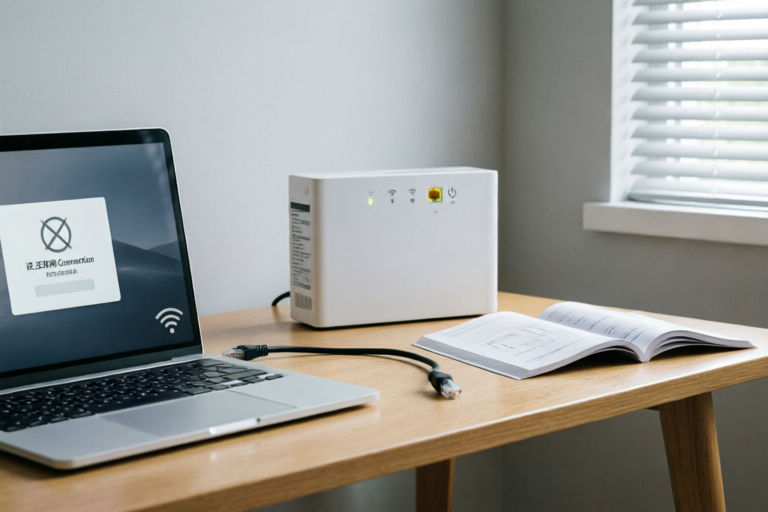
# How to Quickly Fix Your Internet Connection When It Stops Working
## Introduction: Why Internet Drops and How This Guide Helps
In our hyper-connected modern world, losing access to the internet feels less like a temporary inconvenience and more like being cut off from the rest of the world. Whether you are trying to finish a crucial work report, join a remote meeting, stream a live sporting event, or simply catch up on daily news, connectivity loss strikes at a moment of high dependency. The frustration is palpable: the loading spinner never ends, the video freezes, and the email refuses to send.
While many people blame their internet service provider immediately, the issue often lies closer to home—in local hardware, device configurations, or simple physical errors. Attempting random solutions can sometimes make things worse, leading to unnecessary stress and wasted time. That is why this comprehensive guide exists. We have distilled the most effective, industry-standard troubleshooting methods into a logical, step-by-step journey.
This article is designed for everyone from tech-savvy individuals to those who struggle with complex digital interfaces. We will move from the simplest physical checks to deeper software configurations. By the time you finish reading, you will possess a toolkit to diagnose and resolve the vast majority of connectivity issues yourself. You will save money on technician calls, regain your workflow speed, and understand better how your home network operates. Let’s dive into the systematic process of bringing your internet back online.
## Step One: Inspecting Physical Cables and LED Lights
Before assuming a complex software malfunction, you must rule out the foundational layer of your network: the physical hardware. The phrase "dumb pipe" comes to mind here—sometimes the connection path is literally broken physically, regardless of how powerful the signals are supposed to be.
### Verifying Power Sources
The first and most obvious check is ensuring that every component is actually powered on. It sounds rudimentary, but in the chaos of daily life, equipment gets unplugged accidentally. Children bumping cables, pets chewing wires, or power strips failing are common culprits.
Check that the modem and router are firmly seated in their electrical outlets. If you suspect the wall outlet might be faulty, try plugging a lamp or another device into the same socket to verify current flow. If you are using a surge protector or power strip, ensure the switch is in the "ON" position. Sometimes the outlet works, but the power strip has tripped its internal breaker due to a voltage spike. Resetting the switch on the strip can revive connected devices.
### Inspecting Data Cables for Looseness
Next, examine the cables connecting your equipment. The backbone of wired internet relies on coaxial cables (for cable internet), telephone lines (for DSL), or fiber optic cables. Over time, vibrations, tugging, or settling furniture can loosen these connections.
Start at the wall jack. Unscrew the coaxial connector (if applicable) and screw it back in until it clicks. Do the same for Ethernet cables running between the modem and the router. Look for damaged insulation; fraying or exposed copper wires can cause interference and signal loss. If you notice yellowish discoloration on RJ45 connectors, they may be corroded and require replacement. High-quality Cat5e or Cat6 Ethernet cables ensure optimal speed, whereas old Cat3 cables may bottleneck modern connections.
### Analyzing Modem Status Lights for Error Indicators
Perhaps the most valuable diagnostic tool on your device is the set of LED lights on the front panel of your modem and router. These tiny LEDs act as a status report from your ISP. While colors and patterns vary by brand (such as Netgear, TP-Link, or Cisco), there are general universal signs:
* **Power Light:** Should be solid. If flashing or off, you have a power issue.
* **Internet/Online Light:** This is critical. A solid green light indicates a successful handshake with the ISP. A red light usually signifies a signal failure or no upstream communication. A blinking light might indicate it is searching for a signal.
* **Wi-Fi/Wireless Light:** Indicates if the wireless radio is broadcasting. If off, you cannot connect wirelessly even if wired internet works.
* **Gigabit/Ethernet Activity Light:** Blinks rapidly when data is moving. If steady, the line might be dead. No blinking suggests no device is requesting data.
If you see a "LOS" (Loss of Signal) light illuminated in red on a fiber modem, this is almost always an external issue beyond your control. You cannot fix a fiber cut at home. However, if only one light is out among many green ones, it points to a localized router fault rather than a total blackout. Take a photo of your lights before resetting anything, as the technician may ask you for them later.
## Step Two: Performing a Proper Device Power Cycle
If physical inspection yields no visible damage, the next step is the classic IT solution: turning it off and on again. However, simply clicking the power button on your router or unplugging it briefly is rarely sufficient. This is known as a "soft reset," which preserves some cache memory that might be holding onto the error state. A true "hard power cycle" clears the volatile memory and forces the device to renegotiate its connection with the ISP server.
### The Correct Method for Restarting Routers and Modems
To perform a hard power cycle effectively, follow this precise sequence:
1. **Unplug Everything:** Disconnect both the modem and the router from the wall power source. If you have a separate cable box or voice gateway, unplug those too. Leave them completely unplugged for at least one minute.
2. **Drain Residual Energy:** While waiting, press and hold the power buttons on the devices themselves. This drains any remaining capacitance in the circuits, ensuring a cold start.
3. **Wait Time for Memory Clearing:** Why does wait time matter? Internet Service Providers assign dynamic IP addresses via DHCP. Your router caches this lease information. Simply rebooting quickly often results in the router asking for the same IP address it previously held, only to be rejected by the ISP server because the session is still technically open. Waiting 30 to 60 seconds ensures the ISP's servers release your lease and consider the device offline.
4. **Sequence Matters:** Do not plug everything back in at once. Start with the modem. Plug it in and wait for the "Internet" or "Online" light to stabilize. This usually takes 2 to 3 minutes as the device syncs with the tower or node. Once the modem is stable, plug in the router. Then, wait for the router's WAN light to turn green. Finally, connect your computers or phones.
### Why Cached Memory Needs Clearance
Modern routers run mini-operating systems similar to computers. They hold logs, DNS caches, and routing tables. If your network drops during a download or fails to renew an IP, these cached entries can become corrupted. A power cycle wipes these clean sheets of slate. It forces the device to re-run its initial boot-up diagnostics, scanning for available firmware updates and recalibrating signal strength. It is the digital equivalent of restarting a computer when the cursor freezes.
If you find yourself needing to do this constantly, it indicates a deeper compatibility issue or aging hardware, but for sudden blackouts, this is the single highest success-rate action you can take.
## Step Three: Resetting Network Configurations on Devices
Sometimes the problem is not the modem, but the device trying to access it. Your laptop, smartphone, or tablet stores profiles for every network you join. If a profile becomes outdated or conflicting, it can prevent connection even if the internet is perfectly fine. This section covers basic device-side fixes to force a fresh handshake.
### Forgetting Known Wi-Fi Networks
When you connect to a Wi-Fi network for the first time, your device saves the security password and configuration. Over years, this data can drift. If you recently changed your password, your phone might still be holding onto the old credentials, resulting in authentication failures or limited connectivity.
**On Android/iOS:** Go to Settings > Wi-Fi > tap the name of your network > select "Forget This Network." You will then need to rejoin and type the password again.
**On Windows:** Open Settings > Network & Internet > Wi-Fi > Manage Known Networks > click the network > forget.
**On macOS:** Go to System Preferences > Network > Advanced > Select your network > delete the entry from the list.
Once forgotten, reconnecting forces the device to request updated security tokens from the router.
### Renewing IP Addresses
Another common culprit is an IP address conflict. Imagine two devices fighting for the same phone number; neither can talk. Your router assigns numbers automatically, but bugs occur. You can force your device to ask the router for a new number manually.
**Windows Command Prompt:**
Open the Start menu, type `cmd`, right-click and run as Administrator. Type the following commands one by one:
```
ipconfig /release
ipconfig /renew
```
Wait for confirmation messages.
**macOS Terminal:**
Open Terminal, type:
```
sudo ipconfig set en0 DHCP
```
(Ensure you identify your interface name correctly, often `en0` for Wi-Fi).
**Mobile Devices:** Turn Airplane Mode on for 10 seconds, then off. This toggles the radio interface and forces a re-registration with the cell tower or router.
### Ensuring Airplane Mode is Disabled
It seems trivial, yet accidental touches enable Airplane Mode frequently. While this disables cellular data, it also often cuts the local Wi-Fi connection to comply with aviation regulations. Check the quick toggle menu on your screen. Additionally, on laptops, ensure the physical Wi-Fi switch (if present on older models) or the Fn-key combination for wireless radios is active. Some corporate laptops restrict Wi-Fi to specific frequencies if the driver detects an "incompatible" environment, so updating drivers can also help restore the connection.
## Step Four: Ruling Out External Outages or Service Issues
After exhausting all local troubleshooting options, you must look outward. Your house might be perfectly wired, but if the neighborhood infrastructure is down, your router is powerless. Distinguishing between a local fault and a regional outage saves you from wasting hours on futile fixes.
### Checking ISP Status Pages
Most major Internet Service Providers maintain a "Service Status" page or a dedicated Twitter/X handle for outage reporting. Visit your ISP's website login portal; there is often a banner notification at the top of the dashboard indicating "Maintenance in Progress" or "Known Outage." If you are logged in and still browsing, try logging in from a mobile hotspot to compare speeds.
### Using Third-Party Outage Trackers
Your ISP might deny they know about an outage while thousands complain online. Tools like DownDetector aggregate user reports in real-time maps. If you see a massive spike in red dots in your area, it is not your fault. It is also helpful to speak to neighbors. Ask, "Do you still have internet?" If everyone in the building is offline, it is definitely a street-level cable cut or Node failure. If you are the only one offline, the issue remains local to your premises.
### Contacting Support Directly
If you confirm others are offline, wait for the automated repair notifications. If only you are affected, prepare your account information before calling support. Have your modem's serial number ready, along with a log of the steps you have taken (lights, power cycles, etc.). ISPs often have tiered troubleshooting scripts; telling them you already checked cables and power-cycled skips them the manual steps and moves you faster to a hardware dispatch or deep-line diagnosis. Ask for a "signal strength readout" or "line noise check" from the backend; if they show low SNR (Signal-to-Noise Ratio), a line repair is mandated.
## Conclusion: Quick Fixes Recap and Long-Term Stability Tips
Navigating a network interruption can be stressful, but having a structured plan reduces panic and solves problems efficiently. We began by inspecting the physical world—checking cables and lights. We then mastered the art of the power cycle, understanding that patience (waiting 60 seconds) aids in clearing cached memory. Next, we looked at the client devices, forgetting networks and refreshing IPs. Finally, we stepped back to assess external factors like ISP outages.
### Summary of Effective Solutions
1. **Physical Integrity:** Secure all cables and check for power light anomalies.
2. **Hard Reboot:** Unplug for 1 minute and reconnect in the correct order (Modem first, Router second).
3. **Client Refresh:** Forget Wi-Fi networks and renew IP addresses.
4. **Outage Verification:** Check third-party trackers before calling support.
### Preventive Habits for Future Connectivity
To minimize future disconnections, adopt routine maintenance habits. Update your router's firmware regularly; manufacturers patch security vulnerabilities and bug fixes that improve stability. Position your router centrally, away from metal appliances or thick concrete walls, to reduce signal obstruction. Consider upgrading to a Dual-Band or Tri-Band router if your household utilizes many devices simultaneously to avoid bandwidth congestion.
Finally, consider investing in a UPS (Uninterruptible Power Supply) for your networking gear. Power surges during storms or brownouts are notorious for frying modems silently. A small battery backup ensures that when the electricity flickers, your internet keeps pulsing along. By treating your network with care and applying these diagnostic steps, you will spend less time frustrated by buffering icons and more time enjoying the seamless digital world that connects us all.
Stay vigilant, stay informed, and when your connection falters, remember that you hold the power to fix it.