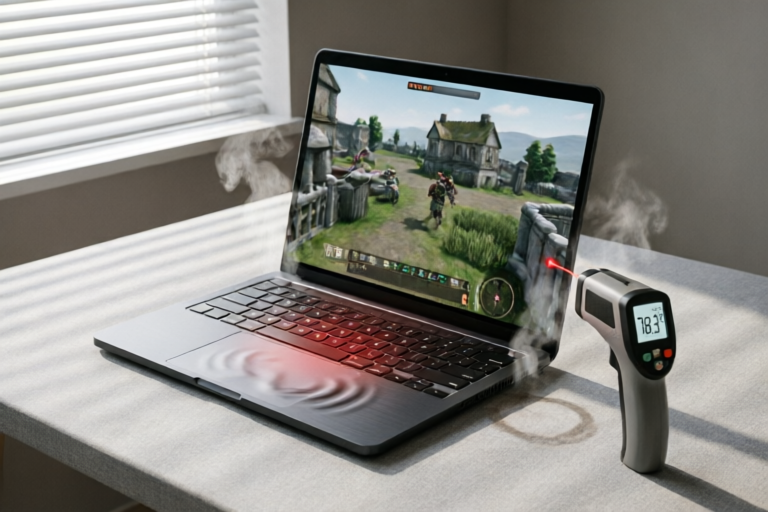
Why Does My Laptop Overheat While Gaming?
Keep Your Gaming Laptop Cool and Performant
Introduction to Laptop Overheating Issues
Definition of laptop overheating during gaming: Overheating occurs when a laptop generates more heat than it can dissipate efficiently. This often happens during intense gaming sessions when the processor, GPU, and other components are pushed to their limits.
Common signs that your laptop is overheating: You might notice your laptop becoming uncomfortably warm, fans running at high speeds, reduced performance, or even automatic shutdowns to protect the hardware.
Importance of addressing overheating issues promptly: Ignoring these signs can lead to permanent hardware damage, reduced gaming performance, and a shortened lifespan for your laptop's internal components.
Causes of Laptop Overheating During Gaming
Insufficient Cooling System
Your laptop's cooling system includes fans and heat sinks. If these components are not functioning optimally, they cannot effectively dissipate the heat generated by the processor and GPU.
Dust Accumulation in Vents and Fans
Dust buildup can block air vents and fans, reducing airflow and making it harder for the laptop to cool itself. Regular cleaning can help maintain optimal performance.
High-Performance Games Demanding More Processing Power
Gaming, especially with high-end titles, requires significant processing power. This increased demand leads to higher temperatures, which can overwhelm the cooling system if not managed properly.
Effects of Overheating on Your Laptop's Performance
Reduced Gaming Performance
Overheating can cause reduced framerates, increased stuttering, and overall degraded gaming experience. In extreme cases, the laptop may automatically throttle down performance to prevent further damage.
Potential Hardware Damage Over Time
Repeated exposure to high temperatures can cause permanent damage to critical components like the CPU, GPU, and battery. This can result in costly repairs or the need to replace your entire system.
Shortened Lifespan of Internal Components
The continuous stress on your laptop's hardware due to overheating can significantly shorten its lifespan. Regular overheating events accelerate wear and tear, leading to premature failure of vital components.
Solutions to Prevent or Mitigate Overheating
Cleaning the Laptop's Ventilation System
Regularly cleaning the air vents and fans can improve airflow and reduce dust buildup. Use compressed air to gently remove debris from the vents and fans.
Using a Cooling Pad for Additional Airflow
A cooling pad provides extra fans and improved airflow, helping to keep your laptop cooler during extended gaming sessions. Look for models with multiple fan speeds and noise-reducing features.
Adjusting Game Settings to Reduce Strain on Hardware
Lowering graphical settings such as resolution, texture quality, and shadow detail can reduce the workload on your GPU and CPU, leading to less heat generation. Additionally, limiting background processes and disabling unnecessary startup programs can also help.
Choosing the Right Hardware for Gaming
Importance of Selecting Suitable Hardware Configurations
When building or purchasing a gaming laptop, it's crucial to choose components that balance performance and thermal efficiency. A well-designed cooling system is just as important as powerful processors and GPUs.
Recommendations for Cooling Systems and Components
Consider laptops with advanced cooling solutions like vapor chambers, multiple fans, and thermal paste upgrades. Ensure the components you select are compatible and optimized for each other to avoid bottlenecks.
Balancing Performance and Thermal Efficiency
Opt for CPUs and GPUs with lower thermal envelopes but still offer sufficient performance for your needs. This helps maintain a stable operating temperature without compromising on gaming capabilities.
Conclusion: Maintaining Optimal Temperatures for Longevity
Summary of key points discussed: Overheating is a common issue during gaming sessions caused by insufficient cooling, dust buildup, and high-performance demands. It can lead to reduced performance, potential hardware damage, and a shortened lifespan for your laptop.
Final tips for keeping your laptop cool while gaming: Clean your laptop regularly, use a cooling pad, adjust game settings, and invest in a well-balanced hardware configuration.
Encouragement for regular maintenance routines: By maintaining your laptop and ensuring it operates within safe temperature ranges, you can extend its lifespan and enjoy a smoother gaming experience. Regular checkups and cleaning routines are essential for long-term performance.
Comments

Lowering the resolution fixed the stuttering AND cooled it down. Win-win!

I upgraded my cooling system and now it runs much cooler. Worth the investment if you game a lot.

Reducing graphics settings definitely helps with heat. But I miss the high quality visuals sometimes.
I cleaned out all the dust but it still gets hot. Any other suggestions?

I bought a cooling pad and it made a huge difference. No more shutdowns mid-game!

Is it normal for the keyboard to get really hot too? I'm worried about damaging my laptop.

Same issue here. My laptop gets so hot it shuts down during intense games. Cleaning the vents helped a bit but I still need to use a cooling pad.