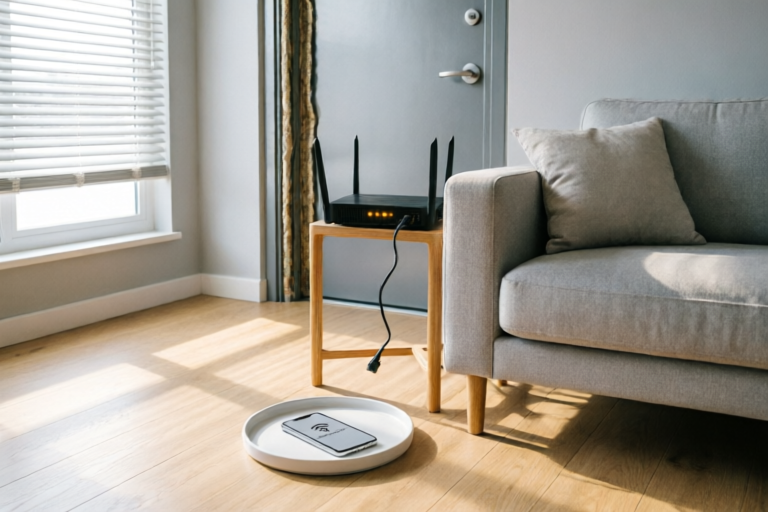
How to Fix Common Home Wi-Fi Issues
Strengthen Your Home Wi-Fi Connection with These Easy Fixes
Introduction to Wi-Fi Troubleshooting
Having a stable home Wi-Fi connection is crucial for modern households. Whether you're working from home, streaming movies, or playing online games, a reliable internet connection is essential. However, Wi-Fi issues can disrupt your daily activities. Common symptoms of Wi-Fi problems include slow speeds, intermittent connectivity, frequent disconnections, and weak signals in certain areas of your home.
In this comprehensive guide, we'll walk you through step-by-step solutions to fix common Wi-Fi issues. By following these tips, you can diagnose and resolve many Wi-Fi problems on your own, saving both time and money.
Basic Troubleshooting Steps
Restarting Your Modem and Router
The first step in troubleshooting Wi-Fi issues is often the simplest: restarting your modem and router. This resets the device's internal processes and can resolve many temporary glitches. To do this, unplug the power cords from both devices for about 30 seconds, then plug them back in and wait for them to fully boot up.
Checking Cables and Connections
Loose or damaged cables can cause Wi-Fi connectivity issues. Ensure all cables connecting your modem and router are secure and not frayed. Check for any physical damage to the Ethernet cables or coaxial cables. If you find any damaged cables, consider replacing them.
Ensuring Correct Network Connection
It's easy to accidentally connect to the wrong Wi-Fi network, especially if multiple networks are available. Make sure your devices are connected to the correct Wi-Fi network by checking the network name (SSID) and password. Sometimes, devices may switch to a neighboring network with a similar SSID, leading to poor performance.
Advanced Troubleshooting Techniques
Changing the Wi-Fi Channel
Interference from neighboring Wi-Fi networks can degrade your Wi-Fi performance. Most routers allow you to change the Wi-Fi channel. Use a Wi-Fi analyzer app to identify the least congested channel in your area and switch your router to it. This can significantly improve your Wi-Fi speed and stability.
Adjusting Router Placement
The placement of your router can greatly affect Wi-Fi signal strength. Ideally, place your router in a central location within your home, away from walls, metal objects, and large appliances. Elevating the router slightly can also help spread the signal more evenly throughout your space.
Updating Firmware
Router manufacturers frequently release firmware updates to fix bugs, improve performance, and add new features. Check your router's manufacturer website for the latest firmware version and follow the instructions to update it. Updating your router's firmware can enhance its capabilities and resolve existing issues.
Network Configuration Fixes
Modifying Security Settings
Enhancing your Wi-Fi security can prevent unauthorized access and improve performance. Consider changing the default encryption type to WPA3, which offers stronger protection than older standards like WPA2. Additionally, use a strong and unique password for your Wi-Fi network to deter potential hackers.
Adjusting Quality of Service (QoS) Settings
Quality of Service (QoS) settings allow you to prioritize certain types of traffic, ensuring smoother performance for critical applications. For example, you can prioritize video streaming or online gaming over background downloads. Access your router's QoS settings via its web interface and configure them according to your needs.
Configuring MAC Address Filtering
MAC address filtering restricts access to your Wi-Fi network to specific devices based on their unique MAC addresses. While this adds an extra layer of security, it can also complicate network management. Only enable MAC address filtering if you have a small number of trusted devices and are comfortable managing the list of allowed devices.
Hardware Considerations
Upgrading Outdated Hardware
If your router or modem is several years old, upgrading to newer models can provide significant improvements in speed and reliability. Newer devices support faster wireless standards like Wi-Fi 6 and offer better performance across a wider range of frequencies.
Adding Range Extenders or Mesh Systems
If you experience weak Wi-Fi signals in certain areas of your home, consider adding a Wi-Fi range extender or a mesh system. Range extenders boost the signal in dead zones, while mesh systems provide consistent coverage throughout your entire home. Choose a system that supports the same Wi-Fi standard as your main router for seamless integration.
Testing Different Antennas
Some routers come with detachable antennas, allowing you to experiment with different configurations. Directional antennas focus the signal in one direction, which can be useful if you need stronger coverage in a specific area. Alternatively, omnidirectional antennas spread the signal evenly in all directions, ideal for general coverage.
Summary and Next Steps
In this guide, we've covered various methods to troubleshoot and fix common Wi-Fi issues. From basic troubleshooting steps like restarting your devices to advanced techniques like adjusting router placement and updating firmware, these solutions can help you improve your home Wi-Fi connection. Remember, if you've tried all these solutions and your Wi-Fi issues persist, it may be time to consult a professional technician for further assistance.
To learn more about Wi-Fi troubleshooting and network optimization, explore additional resources such as manufacturer support forums, online tutorials, and expert blogs. Staying informed can help you maintain a reliable and efficient home Wi-Fi network.
Comments

I enabled MAC address filtering and it seems to have stopped unauthorized access to my network.

Same issue. My internet was super slow until I checked all the cables and tightened them.

I just updated the firmware on my router and noticed a big improvement in speed and stability.

Changing the Wi-Fi channel really helped with the neighbor's network interference. Thanks for the tip!

This worked for me! I moved my router to a central location and added a range extender.

Does anyone else experience slow speeds when streaming? I tried adjusting QoS settings but no luck...

I upgraded my router to a mesh system and it made a huge difference in my house! No more dead zones.
Same issue here. Restarting my router fixed it temporarily, but I still need to look into changing the Wi-Fi channel.