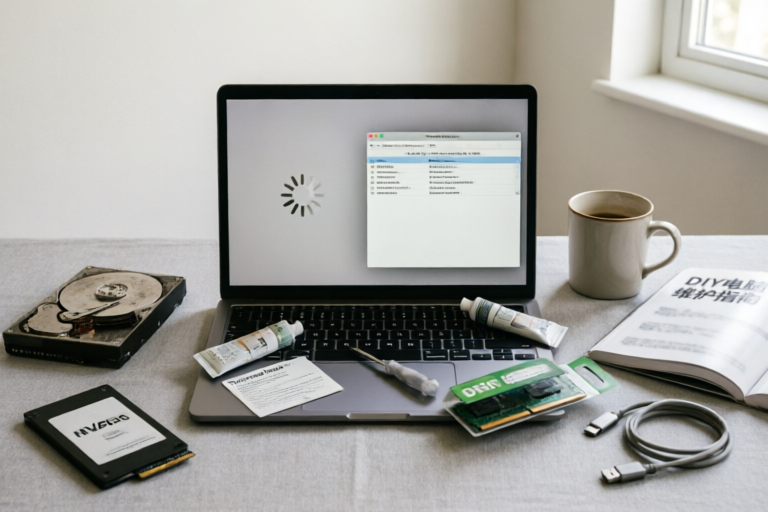
How to Fix a Slow Computer at Home
Revive Your Slow Computer with These Simple Steps
Introduction to Common Causes of a Slow Computer
A slow computer can be frustrating and hinder productivity. There are several factors that can contribute to a sluggish machine, including insufficient RAM, outdated drivers, too many startup programs, and a cluttered hard drive. Addressing these issues promptly is crucial to maintaining optimal performance and preventing further complications.
Step 1: Perform a Basic System Check
Running Disk Cleanup and Defragmentation Tools
One of the first steps in troubleshooting a slow computer is to perform a basic system check. Start by running the built-in Disk Cleanup tool to remove unnecessary files such as temporary internet files, recycle bin contents, and other junk data. Additionally, consider using a defragmentation tool if you're using an older hard drive (HDD) to rearrange fragmented files and improve read/write speeds.
Checking for Viruses, Malware, and Spyware
Another common culprit behind a slow computer is malware. Use reputable antivirus software to scan your system for viruses, malware, and spyware. Ensure your antivirus program is up-to-date and run a full system scan. If you suspect your computer has been infected, disconnect from the internet and follow the recommended actions provided by your antivirus software.
Step 2: Optimize Startup Programs and Services
Identifying Unnecessary Programs That Start Automatically
Many programs are set to launch automatically when you start your computer, which can significantly slow down the boot process. To identify and disable unnecessary startup programs:
- Windows Users: Press
Ctrl + Shift + Escto open Task Manager, go to the Startup tab, and disable any non-essential programs. - Mac Users: Go to System Preferences, select User & Groups, click on Login Items, and remove any unnecessary entries.
By reducing the number of programs that launch at startup, you can noticeably improve your computer’s boot time.
Disabling or Removing Startup Items to Improve Boot Time
If you find programs that you no longer need, uninstall them entirely. This not only reduces the load during startup but also frees up valuable hard drive space. Be cautious when disabling or removing essential system services, as this could lead to instability or functionality issues.
Step 3: Free Up Hard Drive Space
Deleting Temporary Files, Downloads, and Unused Applications
Over time, your hard drive can become cluttered with temporary files, downloads, and unused applications. To free up space:
- Delete temporary internet files, cache, and cookies from your web browsers.
- Remove any downloaded files that you no longer need.
- Uninstall applications that you no longer use.
For Windows users, you can use the Storage Sense feature to automatically clean up temporary files and free up space.
Moving Files to External Storage or Cloud Services
If your hard drive is nearly full, consider moving large files to an external hard drive or cloud storage service. Popular cloud options include Google Drive, Dropbox, and OneDrive. This will not only free up space but also help protect your important data from potential hardware failures.
Step 4: Update Drivers and Operating System
Ensuring All Hardware Drivers Are Up-to-Date
Outdated drivers can lead to performance issues and compatibility problems. To ensure your computer runs smoothly, keep all hardware drivers up-to-date. You can do this manually by visiting the manufacturer’s website or use third-party driver update tools like Driver Booster or Speccy.
Checking for and Installing the Latest OS Updates
Operating system updates often contain performance improvements and security patches. Make sure your operating system is fully updated. For Windows users, go to Settings > Update & Security > Windows Update and check for available updates. Mac users can check for updates via System Preferences > Software Update.
Step 5: Consider Hardware Upgrades
Evaluating Whether Additional RAM or SSD Could Help
If your computer still runs slowly after following the previous steps, it might be time to consider hardware upgrades. Two of the most impactful upgrades are adding more RAM and replacing your hard drive with an SSD.
- RAM: Increasing your computer’s RAM can significantly improve multitasking performance. Aim for at least 8GB for general use, and 16GB or more for gaming or professional applications.
- SSD: Upgrading to a solid-state drive (SSD) can drastically reduce boot times and application loading speeds compared to traditional HDDs.
Before making any hardware changes, consult with a professional or refer to your computer’s user manual to ensure compatibility and proper installation.
Exploring Cost-Effective Solutions for Performance Enhancement
While upgrading hardware can provide significant improvements, there are also cost-effective alternatives to consider:
- Upgrade cooling systems: A poorly ventilated computer can overheat, leading to throttling and reduced performance.
- Replace power supplies: A weak or failing power supply can cause instability and slow performance.
- Use a lightweight operating system: Consider switching to a lightweight OS like Linux Mint or Ubuntu if you’re looking for a faster experience without investing in new hardware.
Conclusion: Maintaining a Faster Computer Going Forward
Regular Maintenance Tips to Prevent Future Slowdowns
To keep your computer running smoothly, establish a regular maintenance routine:
- Perform regular disk cleanup and defragmentation (if applicable).
- Disable unnecessary startup programs.
- Uninstall unused applications.
- Update drivers and the operating system regularly.
- Monitor your hard drive space and move large files to external storage.
By following these practices, you can extend the life of your computer and maintain optimal performance.
When It's Time to Consider Replacing Your Computer
Despite your best efforts, some computers may reach a point where they cannot be adequately upgraded or maintained. If your computer is more than five years old, experiences frequent crashes, or cannot handle modern software, it may be time to consider purchasing a new one. Investing in a newer model with better specifications can provide long-term benefits and improved performance.
Comments

Great tips, but my PC is pretty old now. Might be time to think about upgrading or getting a new one.

Tried everything in this list, but my computer is still super slow. Any other ideas?

Moved all my large files to Google Drive. Not only did it speed up my computer, but I also have access to my files anywhere.

Adding more RAM was the best decision I ever made. My computer feels like new again!

Updating my graphics driver really helped with laggy games. Worth checking if you have the same issue.

I had no idea how much junk I had on my hard drive. Moved a bunch of old files to the cloud and freed up so much space.
I disabled some startup programs and my boot time went from 5 minutes to under a minute. Life saver!
Same issue here. My PC was so slow I thought it was gonna die. Tried the disk cleanup and defrag, made a huge difference!