Tips & Tricks
How to maximize battery life on smartphone easily?
Power Up Your Phone, Extend Your Day
""""
Introduction: Understanding Battery Health
In today’s hyper-connected world, our smartphones have evolved from mere communication tools into indispensable extensions of our daily lives. They serve as our cameras, wallets, navigators, workstations, and entertainment centers. Consequently, the lifespan of a smartphone battery has become a critical metric for user satisfaction. Few things frustrate a mobile user more than “battery anxiety”—the constant fear of the device dying before you leave the house or during a crucial moment. While modern smartphones come equipped with advanced power management systems, chemical aging of the Lithium-ion battery cells remains inevitable. Typically, consumer electronics warranties cover functionality but not necessarily the natural degradation of the battery capacity after a few hundred charge cycles. However, this decline does not mean you are powerless. There are actionable steps you can take to slow down this degradation significantly. The goal is simple optimization without sacrificing the high-performance experience we have come to expect. This comprehensive guide delves into the science and practicalities of maximizing battery life. We will explore how screen brightness interacts with display technology, the hidden drain of network connectivity, the importance of managing background processes, and the nuanced art of healthy charging behaviors. By understanding these mechanics and implementing consistent habits, you can extend the overall operational lifespan of your device, potentially adding years to its usability and preserving resale value. Let’s dive into the essentials of keeping your phone powered up for longer.Optimize Screen and Network Settings
The display and network connectivity are arguably the two most power-hungry components in any modern smartphone. Therefore, optimizing these areas yields the quickest and most noticeable improvements in battery longevity. Unlike background apps that drain energy intermittently, the screen and modem draw power continuously whenever they are active.Managing Screen Brightness and Display Timeouts
Your screen is often cited as the biggest power consumer. Whether you own an iPhone with an OLED panel or an Android device with an IPS LCD, light intensity directly correlates to power draw. While having maximum brightness ensures visibility outdoors, it is rarely necessary indoors. Most smartphones offer an adaptive brightness feature that uses ambient light sensors to adjust luminance automatically. However, setting a manual cap can be even more effective. Consider lowering your brightness to a comfortable level rather than the default maximum. Many users report that 60-70% brightness is sufficient for indoor use and makes a substantial difference over several days of usage. Furthermore, utilize the Auto-Lock (Screen Timeout) setting. Leaving your screen on unnecessarily wastes power. A timeout of 1 to 2 minutes is usually sufficient. If you frequently use your phone on the bedside table, consider using "Smart Stay" features (available on Samsung devices) or similar AI-powered technologies that detect if you are still looking at the screen before locking it. Additionally, if your device supports OLED displays, enable Dark Mode. Black pixels on an OLED screen are turned off completely, consuming zero electricity compared to white pixels which require backlight illumination. For LCD screens, Dark Mode consumes less power, though the effect is slightly less dramatic than on OLED.Navigating Connectivity Options: 5G, Wi-Fi, and GPS
Connectivity modules operate constantly, searching for signals. High-speed networks like 5G are impressive for speed but notoriously power-intensive. When searching for a 5G signal in an area with poor coverage, your phone works harder, leading to rapid battery depletion. If you are in an area where 4G LTE is stable and speeds are adequate, manually switching to 4G/LTE mode can save a significant amount of energy over the course of a day. Wi-Fi is generally more energy-efficient than cellular data, especially for streaming media or downloading large files. Whenever you are at home, work, or in a coffee shop, ensure you are connected via Wi-Fi rather than relying on mobile data. However, ensure you turn off Wi-Fi scanning when not needed, as some phones scan for networks even when disabled to improve location accuracy. Global Positioning System (GPS) and Location Services are another major drain. Most applications do not need real-time, high-accuracy location access all the time. Review your privacy settings and restrict location permissions to “While Using the App” rather than “Always Allow.” For navigation apps like Google Maps or Waze, keep them open only when actively navigating. Disabling GPS when not required, such as when walking through your neighborhood or commuting on public transport, prevents your phone from constantly triangulating your position via satellite towers, thereby conserving battery. Finally, toggle Bluetooth when you aren’t using it. While low-power Bluetooth (BLE) is efficient, older standards or active connections to multiple peripherals can chip away at battery life subtly."""Control App Usage and Background Processes
Once you have addressed the hardware-level drains like the screen and network, the software layer becomes the next frontier for battery conservation. Modern operating systems are designed to handle multitasking efficiently, but user habits and poorly coded applications can still sabotage battery life.The Hidden Cost of Notifications and Background Refresh
Notifications might seem harmless, but each alert wakes your screen, vibrates the haptic engine, and pulls data in the background. Push notifications require a persistent connection to server queues, which keeps the radio modem active. To mitigate this, audit your notification settings. Are social media apps pinging you every time someone likes a post? Do email clients notify you of newsletters instantly? Disable non-essential notifications for promotional or social updates. Turn them off for productivity tools if you can check emails at scheduled times instead of being interrupted constantly. Beyond notifications, “Background App Refresh” (on iOS) or “Running in the Background” (on Android) allows apps to update content without being opened. While useful for receiving messages, many shopping, news, and gaming apps refresh aggressively in the background. Go into your device’s battery settings and disable background refresh for apps that do not require real-time updates. You want the app to wait until you tap to open it to fetch the latest headlines or inventory. This strategy drastically reduces unnecessary CPU activity and network traffic.Closing Resource-Heavy Applications
There is a debate among tech enthusiasts about whether force-closing apps actually helps battery life. In modern memory management architectures, keeping apps suspended in RAM is sometimes more efficient than reloading them from scratch. However, resource-heavy applications like games, video editing suites, or mapping apps often continue to consume processing power even after you switch tabs if they are not fully exited. If you notice specific apps causing your phone to heat up or drain quickly, perform a hard close (swipe up to remove from the app switcher) for those specific instances. Additionally, monitor your widget usage. Large interactive widgets on your home screen that pull live weather, news feeds, or calendar events can run in the background constantly. Limit the number of widgets, and ensure they are static. Uninstalling Bloatware is also essential. Many pre-installed carriers apps or manufacturer utilities may run background checks, telemetry, or sync processes that you never activate. Review your installed applications list. If you haven’t used an app in three months, uninstall it. Even if you plan to use it later, reinstallation takes little effort, but keeping unused apps installed poses a security risk and drains battery resources. Furthermore, keep your operating system and apps updated. Developers frequently release patches that optimize battery consumption and fix bugs that cause loops of excessive resource usage. An outdated OS might miss out on efficiency gains introduced in newer versions of Android or iOS.Leveraging Built-in Power Saving Modes
Both iOS and Android offer native “Low Power Modes” or “Battery Saver” features. These modes automatically reduce processor performance, dim the screen, pause mail fetch, and disable visual effects when the battery drops below a certain threshold (usually 20%). While you don’t need to enable these constantly, knowing when to engage them is valuable. If you know you will be away from a charger for the rest of the day, proactively engaging Low Power Mode prevents the unexpected shutdown. Be aware that this mode might affect call quality or background app syncing speed, but for emergency续航 (range), it is highly effective."""Establish Healthy Charging Behaviors
Perhaps the most critical factor affecting the long-term physical health of your battery is how you charge it. A Lithium-ion battery is a chemical substance, subject to electrochemical stress. How you treat it determines how fast its capacity degrades over time. The following guidelines are not just myths; they are rooted in battery chemistry.Avoiding Extreme Temperatures
Temperature is the enemy of battery health. Both extreme heat and cold can damage battery chemistry. Heat accelerates the degradation of the electrolyte inside the cell, reducing the number of cycles the battery can complete before losing capacity. This is why you shouldn’t leave your phone on a dashboard in direct sunlight or under a hot blanket while charging. Also, heavy charging combined with heavy usage (like playing graphically intense games while fast-charging) creates significant thermal buildup. If your phone feels too warm to touch, remove the case to allow heat dissipation and stop intensive tasks. Conversely, extreme cold can temporarily reduce battery capacity, though it usually recovers once warmed up. However, repeatedly cycling a cold battery back to room temperature stresses the material. Charge your device indoors at room temperature (between 15°C and 25°C) whenever possible.The 20%-80% Rule and Depth of Discharge
One of the most popular pieces of advice in the battery community is the “20% to 80% rule.” Lithium-ion batteries prefer partial charges over full cycles. Keeping the battery at 100% state of charge places voltage stress on the cathode, while letting it drop to 0% causes chemical instability at the anode. For daily convenience, plugging in whenever convenient is fine for modern phones which have sophisticated Battery Management Systems (BMS). However, if you want to maximize the battery’s total lifespan (cycle count), try to keep your charge levels between 20% and 80%. Modern devices now include features specifically for this. iPhones have a feature called “Optimized Battery Charging” which learns your routine and waits to finish charging past 80% until you typically wake up. Similarly, Samsung phones offer “Protect Battery” options that cap charging at 80% or 85%. Enabling these settings ensures you are never stressed by a sustained 100% charge, which is ideal if you plan to keep the phone for 2-3 years or longer. Do not worry about shallow discharges. Plugging in for 10 minutes to get 10% back is better for long-term health than doing a full 0-100% cycle every time. It reduces the stress on the internal chemical bonds.Using Certified Charging Accessories
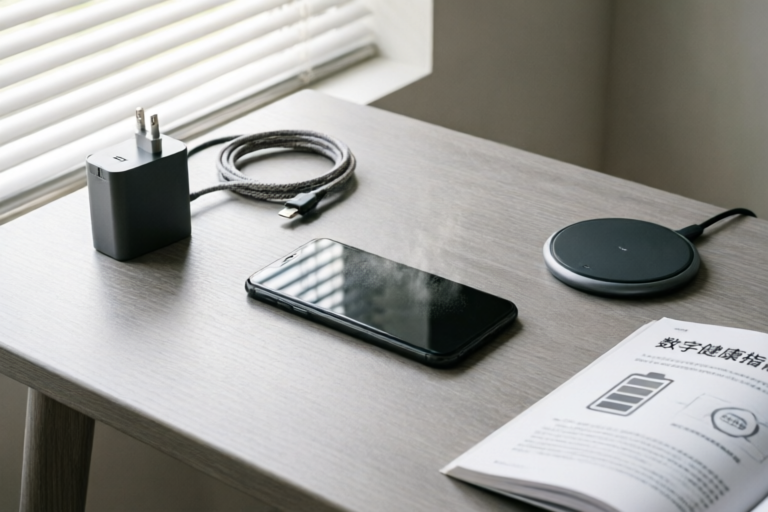
Not all chargers are created equal. Using cheap, third-party cables or uncertified adapters can be dangerous for your battery’s health. Poor quality chargers may not regulate voltage properly, delivering spikes of current that can fry the power management IC on your motherboard or heat the battery excessively. Always use certified accessories. Look for MFi certification (Made for iPhone) or USB-IF certification. These ensure the charger communicates correctly with your device to negotiate the optimal power delivery rate. Wireless charging offers incredible convenience, but it inherently generates more heat due to induction inefficiency. If you use a wireless pad frequently, heat accumulation occurs. If you are concerned about battery longevity, use wired charging as much as possible, reserving wireless charging for situations where convenience outweighs the slight efficiency loss. Also, remove thick cases during fast charging to prevent heat trapping.What About Calibration?
Many users believe their battery is bad because it drops from 20% to 0% in minutes. Often, this is a software calibration issue, not a hardware failure. Over time, the software estimates of percentage can drift. To fix this, occasionally discharge the battery completely until the phone shuts down, then charge it uninterrupted to 100%. Repeat this process once or twice a year. This recalibrates the battery fuel gauge, ensuring the percentage bar accurately reflects the true capacity of the cell. However, do not do this regularly, as deep discharging can harm the chemical structure of the battery.Conclusion: Long-Term Device Performance
Maximizing battery life on a smartphone is not about finding a single magic button to solve all problems. It is a holistic approach involving screen management, network discipline, app hygiene, and conscious charging habits. As we have discussed, starting with the display—lowering brightness, utilizing dark mode, and automating timeouts—provides immediate relief. Following this with a review of connectivity options like 5G and GPS ensures you aren’t drawing power unnecessarily. Controlling what happens behind the scenes through background refresh settings and limiting notifications saves significant energy over weeks. Finally, treating your battery with respect by avoiding extreme temperatures and maintaining charge levels between 20% and 80% preserves the physical integrity of the chemical cell. While these tips might sound like minor inconveniences, the cumulative effect is transformative. Your phone stays charged longer throughout the day, and more importantly, it retains usable capacity for a longer period over the years. Consistent habits lead to sustainable results. Adopting these practices early on can delay the need for a costly battery replacement or premature device upgrade. Remember, technology serves you, and taking care of its power source extends its ability to serve you back. Start with one or two changes from this guide today, perhaps adjusting your screen brightness or enabling Optimized Battery Charging, and observe the difference. With the right balance of convenience and caution, you can enjoy a seamless digital experience that keeps pace with your busy life. Ultimately, a healthy battery is the heart of a functional smartphone, and protecting it ensures your device remains a reliable companion for the long haul."""Comments

confused_user
Which app drains the most usually? Facebook? Maps? Always feel like i cant find the culprit.
👍 7👎 0

student_life
Works! Finally getting through classes without hunting for a plug. Thanks!
👍 0👎 0

battery_hacker
Dark mode + Always On Display OFF = huge gains. Didn't realize how much it drained.
👍 18👎 0

daily_driver
Same issue here with my old phone. Used a cheap cable last winter and battery health tanked. Stick to the box charger!
👍 14👎 0

mark_r
Quick question - does turning off 5G really help much or just wifi tweaks?
👍 13👎 0

jessica_m
My Android battery was dying by noon before reading this. Disabled background refresh and saved big time.
👍 16👎 0
tech_guru_90
Tried keeping it between 20 and 80 but honestly kinda annoying lol. Still works good though.
👍 1👎 0