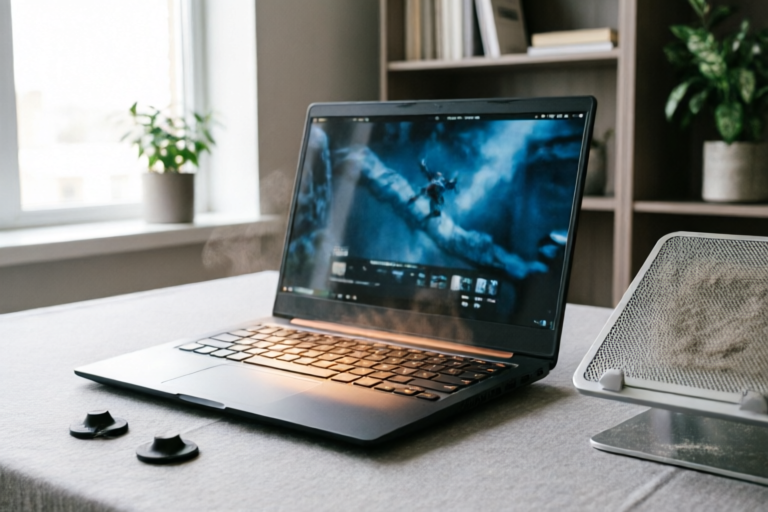
Why Does My Laptop Heat Up While Gaming?
Stay Cool, Stay Competitive
Introduction to the Problem
When you're deep into a gaming session, the last thing you want is for your laptop to overheat. Not only does this disrupt your gaming experience, but it can also lead to hardware damage and reduced performance. Understanding the reasons behind laptop overheating during gaming is crucial for maintaining both the health of your device and your enjoyment of the games.
Causes of Laptop Overheating During Gaming
Insufficient Ventilation or Blocked Air Vents
One of the most common causes of laptop overheating is poor ventilation. If the air vents are blocked by debris, such as dust or even the surface you're placing your laptop on, the heat generated by the CPU and GPU cannot escape effectively. This buildup of heat can cause the internal components to overheat, leading to performance issues.
Dust Accumulation in Cooling Systems
Over time, dust can accumulate inside the cooling system of your laptop. This dust can clog the fans and散热器, reducing their efficiency and making it harder for the laptop to dissipate heat. Regular cleaning of these components is essential to ensure they function properly.
High Ambient Temperatures Affecting Cooling Efficiency
The environment in which you're gaming can also play a significant role in laptop overheating. If the room temperature is high, it becomes more challenging for the laptop's cooling system to dissipate heat effectively. Ensuring that the room is well-ventilated and at a comfortable temperature can help prevent overheating.
Overclocking Settings That Increase Heat Generation
If you've overclocked your laptop's CPU or GPU, you're likely generating more heat than usual. While overclocking can provide a performance boost, it often comes with increased thermal output. It's important to balance the benefits of overclocking with the potential risks of overheating.
Effects of Excessive Heat on Your Laptop
Potential Damage to Hardware Components
Excessive heat can lead to permanent damage to your laptop's hardware components, including the CPU, GPU, and other critical parts. Overheating can cause warping, cracking, or even complete failure of these components, leading to costly repairs or replacements.
Reduced Performance and Frame Rates
As your laptop overheats, it may throttle down its performance to prevent further damage. This throttling can result in reduced frame rates and overall performance, making your gaming experience less enjoyable. The laptop may also become sluggish, affecting not just gaming but other tasks as well.
Increased Risk of System Crashes or Shutdowns
When a laptop overheats, it may automatically shut down or crash to prevent further damage. These unexpected shutdowns can be frustrating, especially during intense gaming sessions. Frequent crashes can also lead to data loss or corruption, making it even more important to address overheating issues promptly.
Solutions to Prevent or Mitigate Overheating
Cleaning Dust from Fans and Vents Regularly
Regular cleaning of your laptop's fans and vents is one of the simplest and most effective ways to prevent overheating. Use compressed air to blow out any accumulated dust, ensuring that airflow remains unobstructed. It's recommended to clean these areas every few months, depending on how frequently you use your laptop and the environment in which you're using it.
Using a Cooling Pad or External Cooling Solutions
A cooling pad can significantly improve the airflow around your laptop, helping to dissipate heat more efficiently. These pads typically have built-in fans that draw hot air away from the laptop and push cooler air underneath. For more advanced cooling, consider external cooling solutions like liquid cooling kits, which can provide even greater thermal management.
Adjusting Game Settings for Better Thermal Management
Lowering the graphical settings in your games can reduce the load on your GPU and CPU, thereby decreasing heat generation. Options like lowering the resolution, disabling anti-aliasing, and reducing texture quality can all help to lower the thermal output without significantly impacting the visual experience. Additionally, adjusting the refresh rate of your display can also help manage heat.
Proper Placement of the Laptop During Gaming Sessions
Where you place your laptop during gaming can also affect its ability to cool itself. Avoid placing it on soft surfaces like beds or couches, as these can block the air vents and impede airflow. Instead, use a hard, flat surface like a desk or table. Elevating the laptop slightly can also improve airflow, allowing heat to escape more easily.
Monitoring and Diagnosing Heat Issues
Tools and Software to Monitor Temperature Levels
There are several tools available that can help you monitor the temperature of your laptop's components in real-time. Programs like HWMonitor, Core Temp, and MSI Afterburner allow you to track the temperature of your CPU, GPU, and other critical components. By monitoring these temperatures, you can identify when your laptop is starting to overheat and take action before it becomes a problem.
Identifying Abnormal Temperature Spikes and Their Causes
It's important to be able to recognize when your laptop is experiencing abnormal temperature spikes. If you notice sudden increases in temperature, check if there are any recent changes in your gaming setup, such as new games, updated drivers, or changes in the environment. Identifying the cause of these spikes can help you address the issue more effectively.
Best Practices for Maintaining Optimal Operating Conditions
To maintain optimal operating conditions for your laptop, follow these best practices:
- Keep the laptop clean and free of dust.
- Use a cooling pad or external cooling solution during intensive gaming sessions.
- Adjust game settings to balance performance and thermal output.
- Ensure proper placement of the laptop on a hard, flat surface.
- Monitor temperatures regularly using appropriate software.
Conclusion and Recommendations
In conclusion, laptop overheating during gaming is a common issue that can significantly impact your gaming experience and the longevity of your device. By understanding the causes of overheating and implementing practical solutions, you can keep your laptop cool and running smoothly. Regular maintenance, proper placement, and smart thermal management are key to ensuring that your gaming sessions remain enjoyable and uninterrupted.
Remember to prioritize thermal management for a better gaming experience. With the right tools and practices, you can prevent overheating and extend the life of your laptop. Happy gaming!
Comments

I noticed that closing unnecessary apps while gaming helps too. Less strain on the CPU means less heat.

Same issue here. I tried all the solutions mentioned but nothing seems to help. Any other suggestions?

I got a new cooling pad with bigger fans. Night and day difference. Highly recommend if you're serious about gaming.

I keep my laptop on a hard surface when gaming. Placing it on soft surfaces like a bed can block the vents and make it hotter.

This worked for me! Lowered my graphics settings a bit and now it stays cooler. Performance is still good though.
Is it normal for overclocking to cause so much heat? I think I might tone it down a bit.

I clean my vents every month and use a cooling pad. It helps a lot but not completely. Still, better than having it overheat.

Same issue here. My laptop gets so hot it's almost unbearable. I had to stop playing mid-game because it shut down. Anyone else experience this?