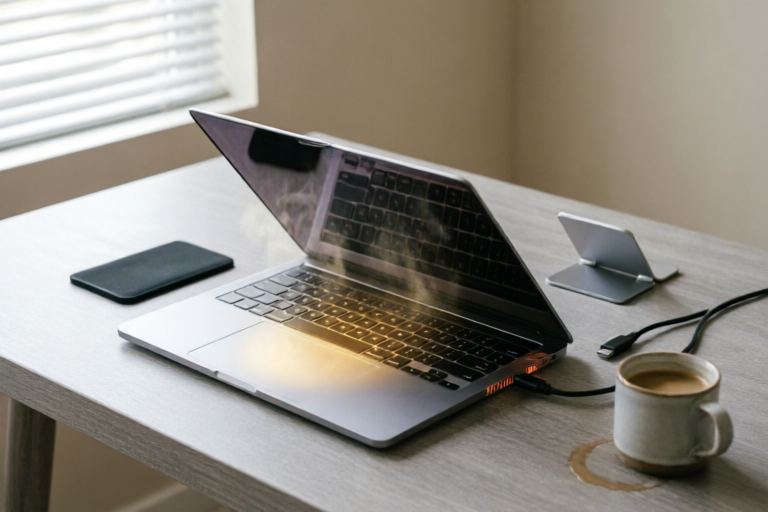
Why Does My Laptop Heat Up So Much?
Keep Your Laptop Cool and Efficient
Introduction to Laptop Heating Issues
Laptops are convenient portable devices that have become an essential part of our daily lives. However, one common issue that users face is excessive heating. Understanding why your laptop heats up so much is crucial to maintaining its longevity and performance. This article will delve into the common causes of laptop overheating, the effects of excessive heat, how to diagnose these issues, and solutions to prevent overheating.
Common Causes of Laptop Overheating
Dust Accumulation in the Cooling System
One of the primary reasons for a laptop overheating is dust accumulation in its cooling system. Over time, dust particles can clog the air vents, reducing airflow and making it difficult for the laptop to dissipate heat effectively. Regular cleaning of the cooling vents and fans is essential to ensure optimal performance.
Overloaded CPU and GPU Usage
Rigorous tasks such as gaming, video editing, or running multiple applications simultaneously can overload the Central Processing Unit (CPU) and Graphics Processing Unit (GPU). These components generate significant heat during intensive operations, leading to increased temperatures. It's important to manage resource-intensive activities to avoid overloading the CPU and GPU.
Faulty Thermal Paste or Damaged Heat Sink
The thermal paste applied between the CPU/GPU and heat sink plays a critical role in transferring heat away from the processor. Over time, this paste can dry out or become ineffective, reducing its ability to transfer heat efficiently. A damaged or improperly installed heat sink can also contribute to overheating issues. Reapplying thermal paste or replacing the heat sink may be necessary to resolve these problems.
Effects of Excessive Heat on Your Laptop
Potential Hardware Damage
Excessive heat can cause permanent damage to internal components, including the CPU, GPU, and other vital parts. Overheating can lead to warping or melting of solder joints, which can result in malfunctioning hardware. Ensuring your laptop operates at safe temperatures is essential to prevent costly repairs or replacements.
Impact on Battery Life and Performance Degradation
\nHigh temperatures can degrade the battery's capacity and shorten its lifespan. Overheating can also cause performance throttling, where the laptop reduces its processing power to prevent further damage. This results in slower performance and a less responsive user experience. Taking steps to keep your laptop cool can help maintain optimal battery life and performance.
Risk of Data Loss Due to Automatic Shutdowns
To protect itself from potential damage, your laptop may automatically shut down when it reaches dangerously high temperatures. While this safety feature helps prevent hardware failure, it can also lead to unexpected data loss if you're working on unsaved files. Regularly saving your work and ensuring proper ventilation can help mitigate this risk.
How to Diagnose Laptop Heating Problems
Using Built-in Diagnostic Tools
Most modern laptops come with built-in diagnostic tools that can help identify overheating issues. For example, Windows users can use the Task Manager to monitor CPU and GPU usage, while Mac users can utilize the Activity Monitor. These tools provide valuable insights into which processes are consuming the most resources and contributing to overheating.
Identifying Warning Signs of Overheating
Being aware of the warning signs of overheating can help you address the issue before it becomes severe. Some common signs include:
- Hot exterior: The laptop feels unusually warm to the touch.
- Noise: Increased fan noise as the system works harder to cool itself.
- Performance slowdown: Sluggish response times and reduced performance.
- Automatic shutdowns: The laptop shuts down unexpectedly to prevent damage.
Pay attention to these signs and take action promptly to avoid further complications.
Checking Temperature Using Third-Party Software
For more precise temperature monitoring, consider using third-party software like HWMonitor, SpeedFan, or Core Temp. These tools provide real-time temperature readings for various components, allowing you to track changes and identify potential issues early on.
Solutions to Prevent Laptop Overheating
Cleaning the Laptop's Cooling Vents and Fans
Regularly cleaning the cooling vents and fans is one of the simplest and most effective ways to prevent overheating. Use compressed air to blow out dust particles and ensure unobstructed airflow. Additionally, consider using a soft brush to gently remove stubborn debris.
Proper Use and Maintenance Tips
Adopting good habits can significantly reduce the likelihood of overheating. Here are some tips:
- Use a cooling pad: Place your laptop on a cooling pad with built-in fans to improve airflow.
- Avoid blocking vents: Ensure that the laptop's vents are not covered by objects or resting on soft surfaces.
- Manage background processes: Close unnecessary applications and disable startup programs to reduce resource consumption.
- Update drivers: Keeping your drivers up to date ensures optimal performance and compatibility.
Considerations for Upgrading Cooling Systems
If your laptop continues to overheat despite regular maintenance, you may need to consider upgrading its cooling system. Options include:
- Thermal paste replacement: Reapply thermal paste to improve heat transfer.
- Heat sink upgrade: Replace the stock heat sink with a larger, more efficient model.
- Cooling pads: Invest in a high-quality cooling pad with additional fans.
Consult with a professional technician if you're unsure about performing these upgrades yourself.
Conclusion: Maintaining Optimal Laptop Temperatures
In conclusion, understanding the causes of laptop overheating and taking proactive measures to prevent it is crucial for maintaining your device's longevity and performance. By addressing issues such as dust accumulation, overloaded CPU/GPU usage, and faulty thermal paste, you can keep your laptop running cool and efficiently. Regular cleaning, proper use, and timely maintenance will go a long way in ensuring your laptop stays in top condition. Remember, a well-maintained laptop not only performs better but also lasts longer, providing you with years of reliable service.
Comments

I noticed a huge difference after replacing the fan. No more automatic shutdowns during intense tasks.

This worked for me! I replaced the thermal paste and now my laptop is running much cooler.

Is it normal for temps to spike when overclocking? Should I be worried about damaging my laptop?

Anyone tried adding a cooling pad? I heard it really helps with overheating issues.

My battery was dying faster than ever. After cleaning the vents, it's lasting longer now. Worth the effort.

I cleaned out my vents and used compressed air. It helped a bit but still getting warm under heavy load.
Same issue here. My laptop gets so hot it's almost unusable during gaming sessions. Any tips for reducing heat without spending too much?