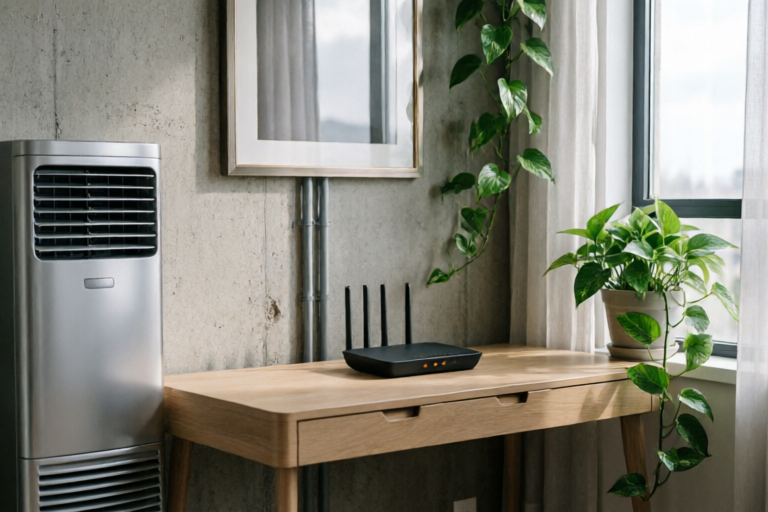
Why Is My Wi-Fi Signal So Weak?
Boost Your Wi-Fi Performance Today!
Introduction to Wi-Fi Signal Strength
Definition of Wi-Fi signal strength and its importance: Wi-Fi signal strength refers to the power level at which wireless data can be transmitted between a device and a router. Stronger signals ensure faster internet speeds and more reliable connections. A weak Wi-Fi signal can lead to slow loading times, dropped connections, and frustrating online experiences.
Common issues faced by users with weak signals: Many users experience weak Wi-Fi signals due to various factors, including physical barriers, distance from the router, and interference from other electronic devices. Understanding these issues is crucial for diagnosing and resolving connectivity problems.
Factors Affecting Wi-Fi Signal Quality
Physical Obstacles Like Walls and Furniture
Walls, floors, and furniture made of materials such as concrete, metal, and glass can significantly weaken Wi-Fi signals. These materials block or absorb radio waves, reducing the range and strength of your Wi-Fi connection. To minimize this effect, place your router in an open area away from dense objects.
Distance from the Router
The farther you are from your router, the weaker your Wi-Fi signal will be. This is because the strength of a Wi-Fi signal decreases exponentially with distance. For optimal performance, keep your devices within a reasonable range of the router, typically around 30-50 feet. If you have a large home or office, consider using a Wi-Fi extender or mesh system to extend coverage.
Interference from Other Electronic Devices
Other electronic devices, especially those that operate on the same frequency bands as Wi-Fi (such as cordless phones, microwaves, and Bluetooth devices), can cause interference and degrade your Wi-Fi signal. To reduce interference, try moving your router away from potential sources of interference or switching to a less crowded Wi-Fi channel.
Router Placement and Setup Tips
Optimal Location for Placing Your Router
The ideal location for your router is in a central position within your home or office, elevated off the ground, and away from obstructions. Avoid placing the router near windows or outside walls, as these areas tend to have higher levels of electromagnetic interference. Elevating the router can help improve signal distribution throughout your space.
How to Position Your Router for Maximum Coverage
To maximize Wi-Fi coverage, position your router in a high-traffic area where most devices will connect. If possible, use a Wi-Fi analyzer app to identify dead zones and adjust your router's position accordingly. Additionally, consider rotating your router to find the best orientation for signal propagation.
Basic Setup Adjustments to Improve Signal Strength
Making simple setup adjustments can significantly enhance your Wi-Fi signal. Ensure your router is set to the latest firmware version, as updates often include performance improvements. You can also change the default SSID (network name) and password for security and ease of management. Additionally, configuring your router's QoS (Quality of Service) settings can prioritize important traffic, ensuring smoother streaming and gaming experiences.
Hardware Limitations and Solutions
Potential Limitations of Your Current Hardware
Your current router may have limitations that affect Wi-Fi performance. Older routers may not support modern Wi-Fi standards like 802.11ac or 802.11ax, which offer faster speeds and better range. Additionally, some routers come with outdated antennas or insufficient amplification, leading to weaker signals.
Upgrading Options Such as Better Routers or Antennas
Consider upgrading to a newer router that supports the latest Wi-Fi standards. High-end routers often feature advanced features like MU-MIMO (Multi-User Multiple Input Multiple Output), which allows multiple devices to communicate simultaneously, improving overall performance. Alternatively, you can purchase external antennas or amplifiers designed to boost your router's signal strength.
Considerations for Mesh Network Systems
If you have a large home or office with multiple floors, a mesh network system might be the best solution. Mesh networks consist of multiple nodes or satellites that work together to provide seamless coverage throughout your space. These systems are particularly effective in overcoming signal dead spots and ensuring consistent performance across all areas.
Network Configuration Adjustments
Changing Channel Settings to Reduce Interference
Wi-Fi channels can become overcrowded, leading to interference and degraded performance. Use a Wi-Fi analyzer tool to identify the least congested channel in your area and switch your router to that channel. Typically, channels 1, 6, and 11 are the least likely to overlap, but this can vary depending on your location.
Adjusting Power Levels for Stronger Signals
Some routers allow you to manually adjust the power output of their antennas. Increasing the power level can help extend the range of your Wi-Fi signal, but be cautious not to overdo it, as excessive power can cause interference with neighboring networks. Consult your router's user manual for specific instructions on adjusting power levels.
Enabling QoS (Quality of Service) for Prioritizing Traffic
Enabling QoS (Quality of Service) allows you to prioritize certain types of traffic, ensuring that critical applications like video calls and online gaming receive sufficient bandwidth. Configure QoS settings to give priority to high-bandwidth activities while managing lower-priority tasks like file downloads.
Conclusion and Final Recommendations
In conclusion, there are numerous factors that can contribute to a weak Wi-Fi signal, including physical barriers, distance from the router, and interference from other electronic devices. By understanding these factors and implementing the strategies outlined in this article, you can significantly improve your Wi-Fi performance.
To start enhancing your Wi-Fi performance immediately, follow these practical steps:
- Place your router in an optimal location, away from obstructions.
- Upgrade to a newer router or consider a mesh network system for larger spaces.
- Change your Wi-Fi channel to reduce interference.
- Enable QoS settings to prioritize important traffic.
If you continue to experience issues after trying these solutions, it may be time to consult with a professional technician or explore advanced troubleshooting techniques.
Comments

Mesh network system solved my weak signal problem at home. Worth the investment!

Same issue here. Walls and furniture are killing my signal. Suggestions?

I tried the QoS setting but didn't notice much change. Anyone else have this issue?

I moved my router to a central location and it made all the difference. Try that first!

Changing channels really helped. Less interference now.
I upgraded my router and antennas. Huge difference!
Same issue here. My router's in the basement and I'm upstairs. Signal's terrible. Any tips?