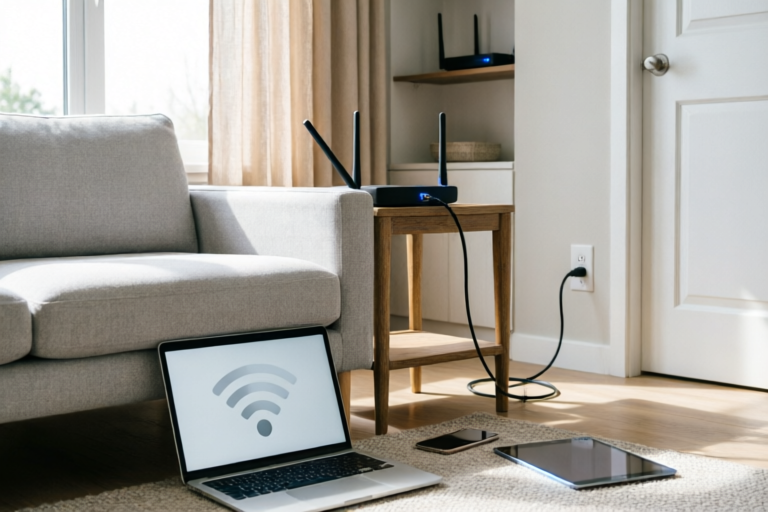
How to Fix Slow Wi-Fi at Home
Optimize Your Wi-Fi, Enhance Your Online Experience
Introduction: Understanding the Causes of Slow Wi-Fi
Slow Wi-Fi can be frustrating, especially when you're trying to stream movies, video call, or work remotely. Before diving into solutions, it's important to understand the common causes of slow Wi-Fi at home. These can include outdated hardware, poor router placement, signal interference, and inadequate internet plans. Accurately diagnosing the problem is crucial to effectively resolving it.
Step 1: Check Your Internet Connection and Service Plan
Verify Your Internet Speed
To determine if your internet speed is the issue, use online speed test tools like Speedtest by Ookla. This will provide a baseline for your actual download and upload speeds. Compare these results with what your internet service provider (ISP) promises in your service plan.
Identify if Your Current Service Plan Meets Your Needs
If your current plan doesn't meet your usage requirements, consider upgrading. For instance, if you frequently stream high-definition content or play online games, you might need a higher bandwidth plan. Additionally, check if your ISP offers any promotions or better deals for existing customers.
Tips on Upgrading or Switching Providers if Necessary
Research different ISPs in your area to find better deals. Look for providers that offer unlimited data and faster speeds. If your current provider doesn't meet your needs, consider switching. Be sure to compare the terms and conditions, installation fees, and any potential early termination penalties.
Step 2: Optimize Your Router Placement and Settings
Best Practices for Positioning Your Router
The location of your router plays a significant role in Wi-Fi performance. Place your router in a central location within your home, away from walls and large metal objects that can block signals. Elevate the router off the ground to avoid interference from electrical appliances. Avoid placing it near windows, as outdoor signals can interfere with your Wi-Fi.
Adjusting Router Settings
Access your router's settings through its web interface. Consider changing the Wi-Fi channel to one that has less interference. You can use tools like WiFi Explorer to find the least congested channel. Additionally, enable Quality of Service (QoS) settings to prioritize certain types of traffic, such as video streaming or gaming.
Using Range Extenders or Mesh Systems
If you have a large home or areas where Wi-Fi coverage is weak, consider using range extenders or mesh systems. Range extenders boost the signal strength in dead zones, while mesh systems create a seamless network across multiple access points. Ensure that any additional devices are compatible with your router and follow manufacturer instructions for setup.
Step 3: Reduce Interference from Other Devices and Signals
Common Sources of Interference
Interference can come from various sources, including microwave ovens, cordless phones, baby monitors, and other wireless devices. These can cause slowdowns or dropouts in your Wi-Fi connection. To minimize interference, move devices that emit strong signals away from your router.
Steps to Minimize Interference
Change the Wi-Fi channel on your router to one that has less interference. Use tools like WiFi Analyzer apps to find the least congested channel. Additionally, place your router in a quiet corner of your home, away from areas with high device density. If possible, switch to a less crowded frequency band, such as 5GHz instead of 2.4GHz, which is more prone to interference.
Recommendations for Wireless-Friendly Home Layouts
Design your home layout with Wi-Fi in mind. Keep your router in an open space and avoid blocking it with furniture. Use wired connections for devices that require consistent and fast speeds, such as gaming consoles or desktop computers. This will free up bandwidth for other wireless devices.
Step 4: Update Firmware and Drivers Regularly
The Importance of Keeping Your Router's Firmware Updated
Router manufacturers regularly release firmware updates to fix bugs, improve security, and enhance performance. Check your router's settings for automatic update options. Alternatively, manually download the latest firmware from the manufacturer's website and follow their instructions for installation.
Instructions for Updating Drivers on Connected Devices
Ensure that all devices connected to your network have the latest drivers. Manufacturers often release driver updates that improve compatibility and performance. Check the device manufacturer's website for the latest versions and follow their installation instructions. For Windows users, the Device Manager can help identify outdated drivers.
Benefits of Automatic Updates vs Manual Ones
Automatic updates ensure that your router and devices are always running the latest software without requiring manual intervention. However, some users prefer manual updates to ensure compatibility and avoid potential issues. Regular updates can prevent security vulnerabilities and optimize performance.
Conclusion: Maintaining Optimal Wi-Fi Performance
In summary, maintaining optimal Wi-Fi performance requires a combination of accurate diagnosis, strategic router placement, minimizing interference, and regular updates. By following the steps outlined in this guide, you can significantly improve your home Wi-Fi experience.
If you continue to experience slow Wi-Fi after implementing these solutions, consider consulting with a professional technician. They can provide advanced troubleshooting and recommendations tailored to your specific setup.
Stay proactive about maintaining your network's health. Regularly monitor your internet speed, update firmware and drivers, and adjust settings as needed. With these efforts, you'll enjoy a faster and more reliable Wi-Fi connection at home.
Comments

I moved my router to a central location and used a range extender. Now my whole house has great Wi-Fi!

What about the devices connected? Should we consider limiting the number of devices to improve speed?

This worked for me! I updated my router's firmware and now I'm getting much better speeds.

Does anyone know if mesh systems are worth the investment for a small apartment?

I've been struggling with slow Wi-Fi for weeks. Will try the range extender suggestion.

I tried changing the router's channel and it really helped with the interference from my neighbors' networks. Thanks for the tip!
Same issue here. My Wi-Fi was super slow even though I had a good plan. Upgrading my router made all the difference!