Explanations & Knowledge
How do I fix slow internet connection at home today?
Reclaim Your Online Experience Today
# How do I fix slow internet connection at home today?
In an era where remote work, online education, and digital entertainment rely heavily on stable connectivity, a slow internet connection can feel like a personal catastrophe. It disrupts workflow, lags gaming sessions, buffers video streams, and creates frustration that permeates your daily routine. Before you panic or file a complaint, it is crucial to understand that slow connectivity often stems from a mix of external factors (your Internet Service Provider) and internal variables (your home network setup).
This guide is designed to be your definitive troubleshooting manual. By the end of this article, you will have a systematic approach to diagnosing the bottleneck and implementing solutions that restore your speed. We will move logically from simple restart procedures to advanced hardware configuration and usage management.
## Understanding Common Causes of Slow Connectivity
Before attempting any fixes, you must grasp the root causes. The internet is a complex ecosystem involving multiple hops between your device, your local network equipment, your provider's infrastructure, and finally, the global internet backbone. A slowdown at any of these stages degrades performance.
### ISP Outages and External Factors
Sometimes the problem is entirely out of your hands. Your Internet Service Provider (ISP) may be experiencing an outage in your neighborhood, performing maintenance, or dealing with high traffic congestion during peak hours (usually evenings between 7 PM and 11 PM). Weather events, such as heavy storms, can also physically damage lines leading to your premises.
To verify this, check your ISP's status page or social media channels. You can also ask neighbors if they are experiencing similar issues. If the issue is widespread, there is nothing you can do locally other than wait for restoration.
### Outdated Hardware
Hardware depreciation is a silent killer of network performance. Old modems might only support DOCSIS 2.0, whereas ISPs are rolling out DOCSIS 3.1 for higher speeds. Similarly, older wireless routers utilizing the legacy 802.11n standard cannot handle modern gigabit throughput. Your computer's network card could also be outdated, limiting its ability to negotiate high speeds even if the internet pipe is fast.
### Network Congestion
Congestion occurs when too many devices share the available bandwidth simultaneously. In a smart home, everything from refrigerators to security cameras constantly communicates. Additionally, Wi-Fi interference from neighboring networks on the same channel can cause packet loss and retransmissions, drastically reducing effective speed.
### Weak Signal Strength
Distance and physical barriers are the enemies of Wi-Fi. Materials like brick, concrete, metal, and even water (like fish tanks) absorb radio waves. If your router is tucked away in a cupboard or buried behind thick walls, the signal reaching your laptop or phone will degrade, forcing the device to lower its transmission rate to maintain stability.
## Step One: The Essential Power Cycle Procedure
While it may sound cliché, the old "turn it off and turn it back on" method remains the most effective first line of defense. This procedure clears temporary glitches, resets the network cache, and refreshes the IP address allocation from your ISP.
### The Correct Sequence for Restarting
It is important to know the correct order to avoid creating further issues. Simply cutting the power does not always guarantee a clean slate because different components have different boot-up sequences.
1. **Disconnect Devices:** First, unplug your main gateway unit (which combines the modem and router) from the electrical outlet.
2. **Disconnect Peripheral Devices:** If you have additional devices like Wi-Fi range extenders or a separate switch, unplug those as well. This ensures the base unit boots up without trying to handshake with peripherals immediately.
3. **The Waiting Period:** Leave everything unplugged for at least 30 to 60 seconds. This allows the capacitors inside the electronics to fully discharge, clearing volatile memory where temporary error states might be stored.
4. **Modem First, Then Router:** If your setup uses separate units (a standalone modem and a standalone router), reconnect the modem first. Wait until the lights on the modem stabilize (usually indicating a solid internet light). Once that is confirmed, plug in the router.
5. **Full Boot Time:** Allow the devices to fully initialize. This process can take 2 to 5 minutes. Do not rush to connect devices until you see the indicator lights signify a normal operational state.
### Why This Clears Glitches
Modern routers function similarly to computers; they have software operating systems that manage traffic queues. Over time, memory leaks or corrupted ARP tables can form. A hard reset forces the firmware to reload fresh, rebuilding the routing table. Furthermore, it forces your device to request a new Dynamic Host Configuration Protocol (DHCP) lease. Sometimes, getting stuck on an old, congested channel is resolved simply by renewing the connection request to a cleaner frequency.
### Advanced Rebooting: Checking Connection Status
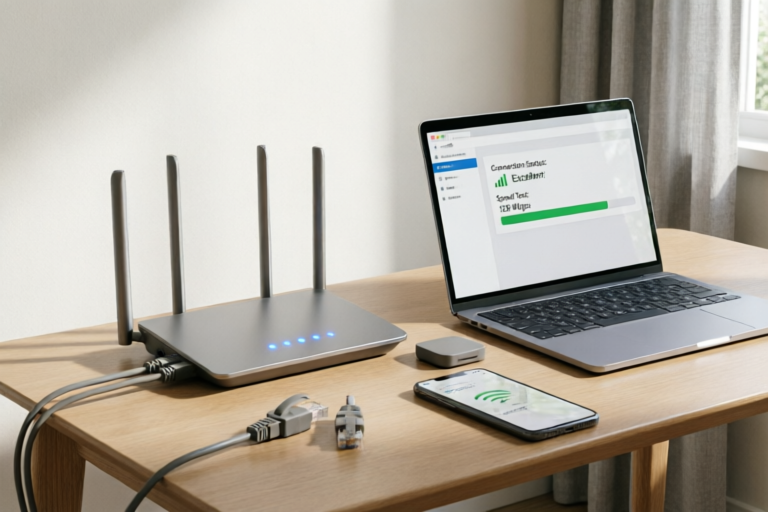
After rebooting, test the speed using a wired connection if possible, rather than Wi-Fi. Connect a laptop directly to the router via an Ethernet cable and run a speed test (e.g., Speedtest.net or Fast.com). This isolates whether the issue is with the internal wiring/Wi-Fi or the ISP feed itself. If the wired speed matches your plan's promised speed, the issue lies within your wireless environment. If the wired speed is still low, the problem likely extends to your ISP connection or modem.
## Step Two: Optimizing Router Placement and Signal Bands
Once the system is refreshed, we must optimize the physical environment. Wi-Fi relies on radio waves, which behave predictably under physics principles. Maximizing these principles is key to boosting signal strength and data integrity.
### Positioning the Router Centrally
Routers emit signals radially, like ripples in a pond, though usually flattened into a pancake shape. Placing the router in the corner of your apartment or house creates a significant coverage imbalance. Half of the signal goes outside the building, and half hits the wall it is mounted on. Ideally, place your router in a central location in the middle of your living space. This minimizes the distance the signal must travel to reach the furthest corners of your home.
### Avoiding Physical Obstructions
Radio waves struggle with dense materials. Place your router on a shelf or desk rather than on the floor or inside a cabinet. Metal objects, including filing cabinets, aquariums, and large appliances like microwaves or refrigerators, act as shields or reflectors that bounce signals away from intended targets. Try to keep the router visible. Also, be wary of decorative glass, especially mirrored surfaces, which can deflect Wi-Fi signals.
### Selecting Less Congested Wi-Fi Frequencies
Most modern routers are dual-band or tri-band, supporting 2.4 GHz and 5 GHz bands (and sometimes 6 GHz).
#### The 2.4 GHz Band
This band travels through walls better and covers larger areas, but it moves slower and is prone to severe congestion. Almost every Bluetooth device, microwave oven, and baby monitor uses this spectrum. If you live in an apartment complex, your router might be fighting with ten other routers on Channel 6 or Channel 11.
#### The 5 GHz Band
This frequency offers significantly faster speeds and less latency. However, its range is shorter, and it penetrates walls less effectively. For tasks requiring high bandwidth—such as 4K streaming, large file downloads, or competitive gaming—connect to the 5 GHz network whenever you are within close proximity to the router. Most modern devices allow you to manually select the network name (SSID) corresponding to the band.
#### Manual Channel Selection
If your speed drops consistently even after switching bands, consider logging into your router's admin panel (usually at 192.168.0.1 or 192.168.1.1). Navigate to the wireless settings and manually set the "Channel" to a fixed number rather than "Auto." For 2.4 GHz, Channels 1, 6, and 11 are non-overlapping. For 5 GHz, try channels between 149 and 165, which are typically quieter in urban environments. Using a free Wi-Fi analyzer app on your phone can show you which channels are overcrowded.
### The Mesh Network Solution
For large homes or multi-story buildings with dead zones, a traditional router might not suffice. Mesh Wi-Fi systems consist of a main node and several satellite nodes placed throughout the house. They create a unified seamless network that automatically routes data through the closest access point. While this is a costlier investment than placing a single router optimally, it eliminates dead zones and provides consistent speed across the entire property.
## Step Three: Reducing Bandwidth Usage on Local Devices
Even with perfect hardware and placement, your internet speed can suffer if your home network is clogged by unnecessary traffic. Managing how and when data flows is critical.
### Managing Background Downloads
Operating systems love to update themselves silently. Windows Updates, macOS patches, and application store updates (Steam, Epic Games Store) often resume automatically in the background, consuming massive bandwidth without your immediate knowledge.
* **Check Update History:** Go into your OS settings and check for active downloads. Pause them temporarily if you need speed for an urgent task.
* **Set Active Hours:** Configure your OS to treat specific hours as "Active Hours," preventing automatic restarts or major downloads during your working or leisure time.
* **Cloud Sync:** Services like Dropbox, Google Drive, OneDrive, and iCloud backup continuously upload and download files. Pause syncing when you are on a known poor connection or during peak hours.
### Pausing Unused Device Connections
Every connected device consumes some overhead, but IoT devices rarely consume much. However, unused laptops or smartphones left on standby can sometimes trigger updates.
* **Guest Networks:** Utilize your router's Guest Network feature for visitors and smart home devices. This isolates their traffic from your main PC and prioritizes main devices.
* **Sleep Mode:** Encourage family members to put non-essential tablets or gaming consoles to sleep when not in use.
### Prioritizing Important Applications (QoS)
Quality of Service (QoS) is a feature found in most business-grade and many consumer-grade routers. QoS allows you to classify traffic types and assign priorities.
1. **Access Router Admin Panel:** Log in to your router settings.
2. **Locate QoS Settings:** Find the Quality of Service tab.
3. **Create Rules:** Set rules to prioritize packets belonging to Voice over IP (VoIP), Gaming, or Video Conferencing apps (like Zoom or Teams) over lower-priority traffic like file backups or torrent downloads.
4. **Device Prioritization:** Some advanced routers allow you to assign high priority to specific MAC addresses (like your work laptop) ensuring that even if the TV is downloading a movie, your video call remains crisp.
### Wired vs. Wireless Trade-offs
Wi-Fi convenience comes at the cost of stability and speed. Electromagnetic interference from household appliances creates noise on the airwaves. Whenever possible, connect stationary devices like Smart TVs, Game Consoles, and Desktop PCs directly to the router using Ethernet cables (Cat5e or Cat6).
A direct cable connection provides:
* **Lower Latency (Ping):** Crucial for gaming.
* **Higher Throughput:** Gigabit Ethernet is often faster than real-world Wi-Fi speeds.
* **Stability:** No risk of signal fluctuation.
Use the Wi-Fi exclusively for mobile devices (phones, laptops, tablets) that require mobility, thereby keeping the airwaves open for them instead of letting static devices clutter the bandwidth.
### Security Checks
A hidden danger to your bandwidth is unauthorized access. While WPA2 and WPA3 encryption are standard, older routers might leak passwords. Perform a quick audit to ensure you aren't hosting an open hot spot inadvertently. Also, scan for viruses on your own devices. Malware can turn your computer into a botnet node, sending data out to unknown servers and consuming upstream bandwidth.
## Evaluating ISP Plans and Seeking Support
If you have exhausted all internal optimizations, it is time to evaluate the contract terms and potentially escalate the issue with your service provider.
### Running Accurate Speed Tests
Do not rely on visual cues like buffering icons; measure the raw speed. Use established benchmark tools like Ookla Speedtest, Fast.com, or Google Fiber Speed Test.
* **Download Speed:** Measure this for streaming browsing.
* **Upload Speed:** Critical for sending files, video calls, and cloud uploads.
* **Ping/Latency:** Measured in milliseconds (ms); essential for gaming and VoIP.
* **Jitter:** The variance in ping; high jitter causes choppy audio/video.
Compare these results against what you are paying for. Remember that advertised "up to" speeds are rarely sustained. If you are paying for 300 Mbps but consistently testing below 150 Mbps via Ethernet, your ISP is likely failing their agreement.
### Criteria for Contacting Customer Support
When calling your ISP, prepare the following information to expedite the process:
* **Evidence:** Have screenshots of your recent speed tests (download, upload, ping).
* **Troubleshooting Steps Taken:** Explicitly state that you have already rebooted the equipment, checked cabling, and tested via Ethernet. This proves the issue isn't simple user error.
* **Line Diagnostics:** Ask the technician to run a "signal-to-noise ratio" (SNR) test on your line. Low SNR indicates physical line degradation (corrosion, wet taps).
* **Modem Rental vs. Own Hardware:** Ask if renting a modem from them is causing speed caps. Buying your own compatible modem can unlock the true tier of speed purchased.
### Final Options and Future Proofing
If the ISP promises repairs but speeds remain low, look into changing providers if available in your area. Competition drives performance. Alternatively, consider upgrading your own hardware to match your plan. A modern Wi-Fi 6 (802.11ax) router supports multiple devices simultaneously much better than older models, reducing the "traffic jam" effect inside your home.
## Conclusion
Fixing a slow internet connection requires patience and a systematic approach. Start with the fundamentals: a proper power cycle to clear digital debris. Move on to physical optimization: positioning your router in the center of your world and separating frequency bands to reduce congestion. Manage your devices actively by pausing background drains and prioritizing critical applications through Quality of Service settings. Finally, validate your connection objectively with speed tests and hold your provider accountable if the delivered speed does not match the contract.
By taking control of these variables, you transform your internet experience from a source of frustration into a reliable tool. Implement these steps today, and watch your digital life become smooth, responsive, and efficient again. Remember, a fast connection is not just about speed—it is about efficiency, reliability, and maintaining your peace of mind in an increasingly connected world.
Comments

RemoteWorkerX
Looks like it was my laptops background updates. turned those off manually after reading step 3.
👍 8👎 0

GrumpyGramps
Wait, how long should I wait before plugging it back in? Some people say 1 min some say 30 secs. Confused lol.
👍 29👎 0

FamilyOfFour
Same issue here calls drop every hour. gonna try moving the router closer to my desk later.
👍 9👎 0

WiFiWizard
If you have an old modem from back in the day, honestly upgrade it. My 5Ghz band alone doubled my speed.
👍 16👎 0
StreamKing99
Did the restart thing but still super laggy during prime time. Is my ISP just throttling me? 😩
👍 14👎 0

TechSavvyDad
Finally fixed mine! Turns out just unplugging for like 60 seconds did the trick. Thanks for the reminder.
👍 6👎 0